How to Unlock Panasonic Genius Microwave: Easy Steps Revealed
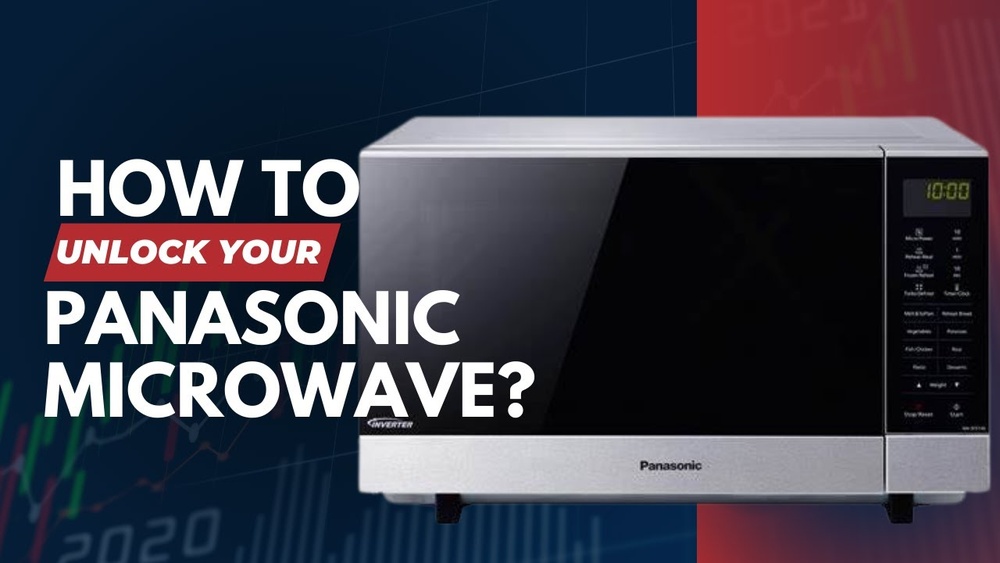
Is your Panasonic Genius Microwave stuck in lock mode, leaving you frustrated and unable to heat your food? You’re not alone.
Many users accidentally activate the child safety lock or lock the control panel without realizing it. The good news is, unlocking your microwave is easier than you think—and you don’t need any technical skills to do it. In this guide, you’ll discover simple, step-by-step methods to quickly unlock your Panasonic Genius Microwave.
Whether you want to disable the child lock or reset your control panel, these proven tips will get your microwave working again in no time. Keep reading to take back full control of your microwave and make mealtime hassle-free!

Credit: applianceworldonline.com
Common Methods
Common methods to unlock a Panasonic Genius microwave are simple and quick. Most models include easy button commands to disable the lock. These methods help reset the control panel without technical tools. Below are two effective ways to try first.
Triple Press Stop/reset
Press the Stop/Reset button three times rapidly. This action often disables the child lock. The microwave display should clear the “LOCK” icon. If the lock stays, try pressing the button more evenly. This is the fastest way to unlock most Panasonic models.
Power Reset
Unplug the microwave from the power outlet. Wait about 1 to 2 minutes before plugging it back in. This resets the microwave’s internal system. After reconnecting, check if the lock is gone. A power reset can fix minor control panel glitches causing the lock.
Model-specific Sequences
Each Panasonic Genius microwave model may require a unique sequence to disable its lock. These model-specific sequences depend on the type of control panel and button layout. Identifying the correct sequence ensures a smooth process and avoids frustration. This section focuses on common sequences tailored to different Panasonic models. Follow these steps carefully to regain full use of your microwave.
Touch Panel Unlock Codes
Many Panasonic Genius microwaves with touch panels use special codes to disable the lock. Usually, pressing and holding a combination of buttons for a few seconds works. For example, press and hold the “Clear” or “Stop/Reset” button for about 3 to 5 seconds. The display may show “LOC” or “LOCK” when the lock is active. After holding the buttons, the lock icon should disappear.
Some models require entering a numeric code on the touchpad. This code is often “0” or “1.” Check your user manual for the exact code. If the code is correct, the microwave unlocks immediately. Keep the code handy for future use.
Button Combinations
Button combinations can vary between Panasonic Genius microwave models. A common method involves pressing the “Stop/Reset” button three times rapidly. This action usually toggles the lock on or off.
Another popular sequence is pressing the “Start” button three times, followed by pressing “Stop/Reset” three times. This combination helps disable the safety lock feature in some models. Some microwaves require a sequence like “Defrost,” then “Timer,” then “Popcorn” buttons pressed in order to release the lock.
Always clear any previous settings before trying these sequences. Sometimes, the microwave won’t respond if other functions are active. If none of these methods work, check your model’s manual for specific instructions.
Child Safety Lock
The Child Safety Lock on your Panasonic Genius Microwave prevents accidental use. It keeps children from starting or changing the microwave settings. This feature adds peace of mind in homes with young kids. You can easily activate or deactivate the lock using simple button presses.
Activating The Lock
To activate the child safety lock, press the Stop/Reset button three times quickly. A lock icon will appear on the microwave display. This means the control panel is now locked. The microwave will not start or respond to other buttons until unlocked.
Deactivating The Lock
To deactivate the child safety lock, press the Stop/Reset button three times again. The lock icon will disappear from the display. The microwave controls will return to normal operation. This process works for most Panasonic Genius Microwave models.
Troubleshooting Tips
Troubleshooting your Panasonic Genius Microwave is simple with the right steps. Many lock issues happen due to minor problems. These tips help you quickly identify and fix common causes. Follow each step carefully for best results.
Check For Obstructions
Obstructions can stop the microwave from responding. Dirt, crumbs, or small objects near buttons block signals. Look closely around the control panel. Remove anything that might be stuck or covering buttons. Make sure the door closes fully without anything inside blocking it.
Clean Control Panel
Dirt and moisture can confuse the touch sensors. Use a soft, damp cloth to clean the panel gently. Avoid harsh chemicals or too much water. Dry the panel fully before trying the microwave again. Clean buttons respond better and reduce false locks.
Avoid Simultaneous Presses
Pressing multiple buttons at once can lock the controls. Use one finger to press buttons clearly and slowly. Avoid tapping several buttons quickly or at the same time. This prevents accidental activation of the lock feature and helps the microwave register your commands correctly.
Manual And Support
When your Panasonic Genius Microwave locks, finding the right solution matters. The manual and support resources provide clear guidance. They help you understand the lock features and how to disable them safely. Follow simple steps to get your microwave working again.
Consult User Manual
The user manual holds key instructions for your microwave model. It explains how to activate and deactivate the child lock. Locate the section about safety locks or control panel locks. The manual often includes button sequences to unlock the microwave. Keep the manual handy for quick reference. It ensures you follow the exact steps designed for your device.
Contact Panasonic Support
Panasonic support offers help when manual instructions don’t solve the problem. Reach out by phone or email for expert advice. Provide your microwave model number for accurate assistance. Support can guide you through troubleshooting or schedule repairs if needed. Their team ensures your microwave returns to normal use without hassle.

Credit: shop.panasonic.com

Credit: www.youtube.com
Frequently Asked Questions
How Do I Get My Panasonic Microwave Out Of Lock Mode?
Press the Stop/Reset button three times quickly to unlock most Panasonic microwaves. The lock icon will disappear. For touch panel models, press Stop/Reset three times or try pressing Defrost, Timer, then Popcorn to toggle the lock. Check your manual for model-specific instructions.
How Do I Unlock The Door On My Panasonic Microwave?
Press the Stop/Reset button three times quickly to unlock the door on your Panasonic microwave. The lock symbol will disappear, and the panel will respond. For touch panel models, try pressing Start three times, then Stop/Reset three times to unlock.
Consult your manual if needed.
How Do I Turn Off Lock Mode On My Microwave?
Press the Stop/Reset button three times quickly to turn off lock mode on your microwave. The lock icon will disappear. For touch panel models, try pressing Start three times, then Stop/Reset three times. Check your manual for model-specific instructions.
How Do You Unlock The Child Lock On A Panasonic Genius 1100w Microwave?
Press the Stop/Reset button three times quickly to unlock the child lock on the Panasonic Genius 1100W microwave. The lock icon will disappear, and the control panel will become responsive. Ensure the panel is clean if unlocking fails. Check the user manual for model-specific instructions.
Conclusion
Unlocking your Panasonic Genius microwave is simple with the right steps. Try pressing the Stop/Reset button three times quickly first. For touch panel models, use the Start and Stop/Reset button combinations. Keep the control panel clean to avoid sensor issues.
Check your user manual for model-specific instructions. These tips help you regain full use without stress. Now, your microwave is ready to serve your cooking needs again.