How to Set Up Clock on Samsung Microwave: Easy Step-by-Step Guide
Setting the clock on your Samsung microwave might seem like a small task, but it’s one that makes a big difference in your kitchen routine. Imagine preparing meals with the perfect timing or simply knowing the exact time at a glance while cooking.
If you’ve ever felt frustrated trying to figure out how to adjust your microwave’s clock, you’re not alone—and you’re in the right place. In this guide, you’ll learn the simplest, step-by-step way to set the clock on your Samsung microwave quickly and without any hassle.
Keep reading, and you’ll have your microwave’s clock running smoothly in no time!
Clock Setup Basics
Setting the clock on your Samsung microwave ensures timely cooking and accurate timer use. The process is simple and takes only a few steps. Understanding the basics helps you avoid confusion and get the clock running fast.
Follow these easy steps to set your microwave’s clock correctly. Start with locating the right button and checking your microwave’s power source.
Locate Clock Button
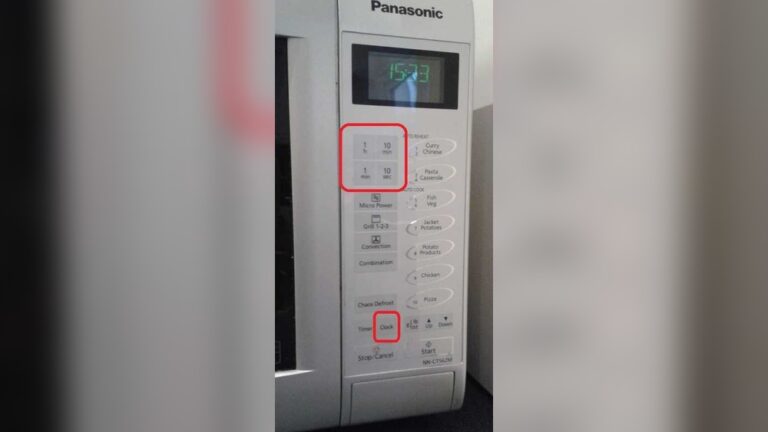
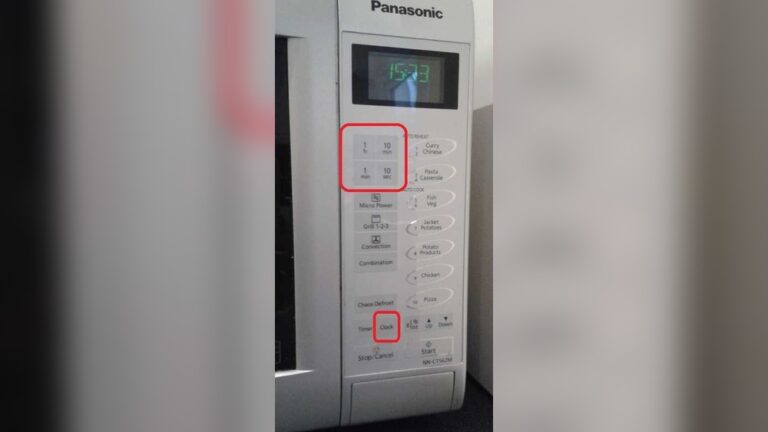
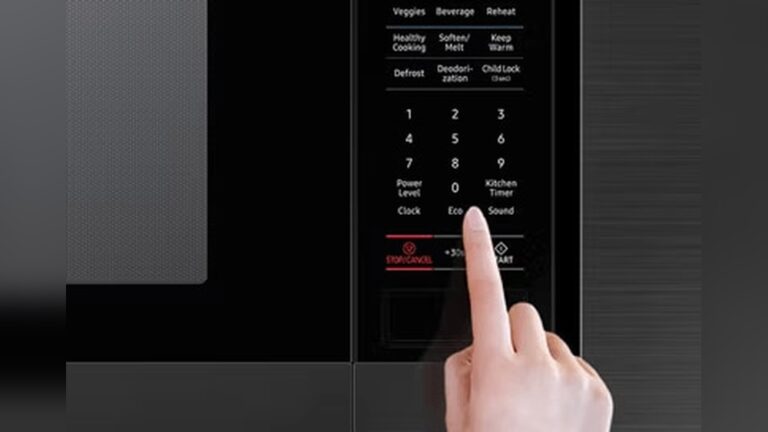
Find the button labeled “Clock” or a clock icon on the control panel. It is usually near the number pad. Press this button once to start setting the time. On some models, you might need to hold it for a few seconds. Check your microwave’s manual if you cannot find it.
Power Source Check
Ensure your microwave is plugged in and receiving power. If it is not, the clock will not set or display correctly. Sometimes, power interruptions reset the clock. Plugging the microwave into a working outlet is the first step before setting the time. This guarantees the settings save properly.

Credit: www.wikihow.com
Step-by-step Clock Setting
Setting the clock on your Samsung microwave is simple and quick. A correctly set clock helps you keep track of cooking times and adds convenience. Follow these clear steps to set the time accurately on your microwave’s display.
Enter Clock Mode
Press the “Clock” button on the microwave control panel. The display will start blinking, showing that you are in clock setting mode. If your model does not have a “Clock” button, press and hold the “Stop/Cancel” button for a few seconds.
Set Hours And Minutes
Use the number pad to enter the current hour. After entering the hour, press the “Clock” button again to move to minutes. Enter the current minutes using the number pad. Double-check the numbers to ensure they are correct.
Toggle Am/pm
Press the “Clock” button once more to toggle between AM and PM. The display will show either “AM” or “PM” next to the time. Choose the correct one for your current time. This step is important for proper microwave operation.
Confirm Time
Press the “Start” or “Clock” button to confirm and save the time. The blinking will stop, and the clock will display the set time continuously. Your microwave clock is now ready and will keep accurate time.
Alternative Clock Setting Methods
Setting the clock on your Samsung microwave can be done in different ways. Sometimes the usual method might not work for your model. Alternative clock setting methods offer simple options to fix the time quickly. These methods use buttons and menus that you might not have tried yet. They help keep your microwave clock accurate with ease.
Using Power Level Button
One way to set the clock is by using the Power Level button. Press and hold the Power Level button for a few seconds. The clock display will start to blink. Use the number pad to enter the current time. Press the Start button to save the time. This method works well on many Samsung microwave models. It is fast and does not need navigating through menus.
My Settings Menu
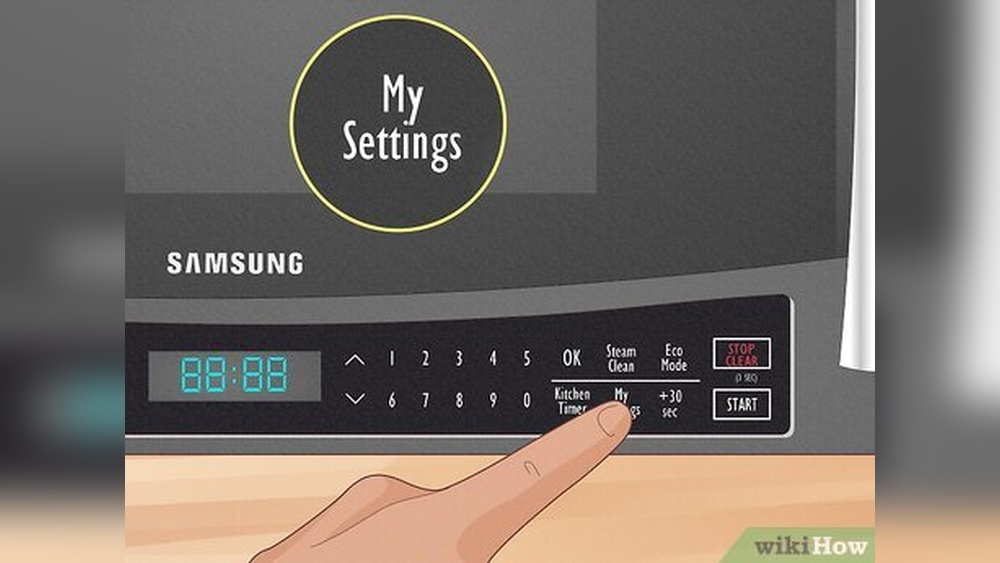
Another method is through the My Settings menu on your microwave. Press the Menu or My Settings button. Scroll through the options using the arrow keys. Find and select the Clock or Time setting. Enter the correct time using the number keys. Confirm your entry by pressing OK or Start. This method gives more control over your microwave’s settings. It is useful if the Power Level button method does not work.
Troubleshooting Clock Issues
Setting the clock on a Samsung microwave should be simple. Sometimes, issues arise that stop the clock from working right. Troubleshooting these problems helps get the clock running again fast. Understanding common clock issues can save time and frustration.
No Clock Button Available
Some Samsung microwaves do not have a dedicated clock button. The clock may be set using the number pad or the settings menu. Check the user manual for your model to find the correct method. Try pressing “Settings” or “Options” if no clock button shows. Enter the clock setup through the menu options to change the time.
Unresponsive Control Panel
The control panel may stop working, making it impossible to set the clock. Dirt or grease can block the buttons. Clean the panel gently with a soft, damp cloth. Avoid harsh chemicals that can damage the controls. If cleaning does not help, unplug the microwave for a few minutes. Plug it back in and try again to see if the panel responds.
Resetting The Microwave
Resetting the microwave often fixes clock and control problems. Unplug the microwave from the power outlet. Wait about five minutes before plugging it back in. This allows the microwave to reset internally. After restarting, try setting the clock again. Some models have a reset option in the menu. Check your manual for instructions on using this feature.
Maintaining Clock Accuracy
Keeping the clock on your Samsung microwave accurate helps you manage cooking times well. A correct clock avoids confusion during meal prep. It also keeps your kitchen schedule on track. Small efforts maintain time precision easily.
Power Outage Impact
Power outages reset your microwave clock to 12:00. This can cause you to lose track of real time. After a power cut, always reset the clock immediately. This prevents cooking mistakes and timing errors. Some models may have backup power, but most need manual reset.
Regular Time Checks
Check your microwave clock often to ensure it shows the right time. Time can drift slightly over weeks. Make it a habit to glance at the clock weekly. Adjust the time if you notice it is wrong. This small step keeps your microwave clock reliable and helpful.
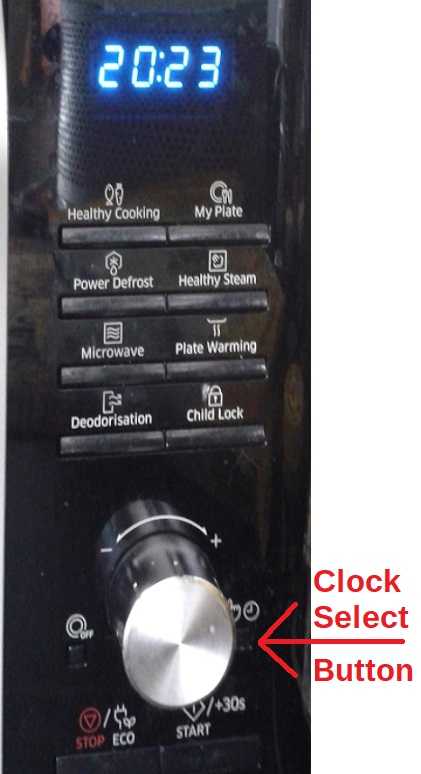
Credit: www.satsig.net
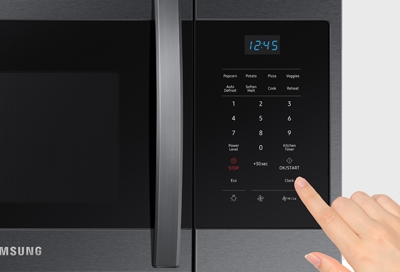
Credit: es-us-284fcd07851162dad.getsmartling.com
Frequently Asked Questions
How Do I Manually Change The Time On My Samsung?
To reset a Samsung microwave, unplug it from the power outlet for one minute. Plug it back in to restart. For some models, access the settings menu by holding the “Options” or “Trainer” button, then select “Reset. ” Consult your manual for model-specific steps.
How Do I Reset A Samsung Microwave?
To reset the clock on your Samsung microwave ME19R7041FS, press “Clock. ” Use number pads to enter the time. Press “Clock” or “Start” to confirm.
How Do I Reset The Clock On My Samsung Microwave Me19r7041fs?
Press the “Clock” button once. Use the number pad to enter the time. Press “Clock” again to set AM/PM. Finally, press “Start” to confirm.
Conclusion
Setting the clock on your Samsung microwave is quick and simple. Just follow the steps carefully to avoid mistakes. A correctly set clock helps you keep track of cooking time easily. Regularly check the time to ensure it stays accurate.
This small task improves your overall microwave experience. Now, enjoy using your microwave with the correct time displayed.