How to Reset Filter on Samsung Microwave: Quick & Easy Guide
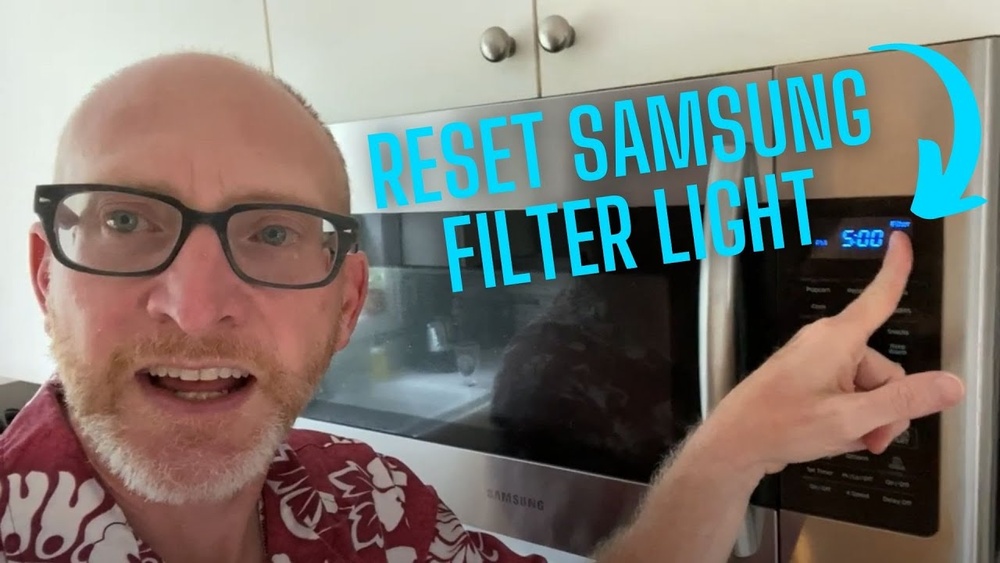
Is your Samsung microwave’s filter light constantly on, and you’re not sure how to turn it off? You’re not alone.
That little filter indicator is your microwave’s way of telling you it’s time to clean or replace the filter, but once you’ve done that, you might wonder how to reset the filter alert. If you don’t reset it, the light will keep nagging you, making you feel like something’s wrong even when everything is fine.
In this guide, you’ll learn the simple, step-by-step process to reset the filter on your Samsung microwave quickly and easily. Keep reading, and you’ll have your microwave running smoothly with that annoying filter light gone in no time.
Filter Reset Basics
Understanding the filter reset basics helps keep your Samsung microwave running well. The filter light signals when the filter needs attention. Resetting this light keeps your microwave alert system accurate.
Resetting the filter is simple and prevents unnecessary worries. It also ensures the appliance works efficiently and safely. Knowing why and when to reset the filter light is important for every user.
Why Reset The Filter Light
The filter light shows when the microwave’s filter needs cleaning or replacing. Resetting the light tells the microwave you have done the maintenance. This stops the light from showing false alerts. It also helps the microwave track filter use properly. Ignoring the light can reduce microwave performance. Resetting it keeps your kitchen safe and your microwave effective.
When To Reset The Filter
Reset the filter light after cleaning or changing the filter. This ensures the light matches the filter’s actual condition. Usually, the filter needs attention every few months. The exact timing depends on how often you use the microwave. Always check the filter light after filter care. Reset it immediately to keep your microwave running smoothly.

Credit: www.samsung.com
Cleaning The Filters
Cleaning the filters in your Samsung microwave is essential for maintaining its performance. Dirty filters reduce airflow and cause odors. Regular cleaning keeps your microwave efficient and safe. Follow these simple steps to clean the charcoal and grease filters properly.
Removing Charcoal And Grease Filters
Start by unplugging the microwave for safety. Open the vent cover above the microwave. Locate the charcoal and grease filters inside. Gently pull the filters out from their slots. Handle them carefully to avoid damage.
Washing Filters Properly
Use warm water and mild dish soap to clean the filters. Avoid harsh chemicals that can damage the filters. Soak the filters for 10 to 15 minutes. Use a soft brush to remove stuck grease and dirt. Rinse thoroughly with clean water to remove soap.
Drying And Reinstalling Filters
Shake off excess water from the filters. Let them air dry completely before reinstalling. Avoid using a cloth to dry, as fibers may stick. Slide the filters back into their original positions. Close the vent cover securely before use.
Resetting The Filter Light
The filter light on your Samsung microwave signals when the filter needs cleaning or replacement. Resetting this light helps keep your microwave running efficiently. The reset process is quick and can be done through the control panel or other methods, depending on your model.
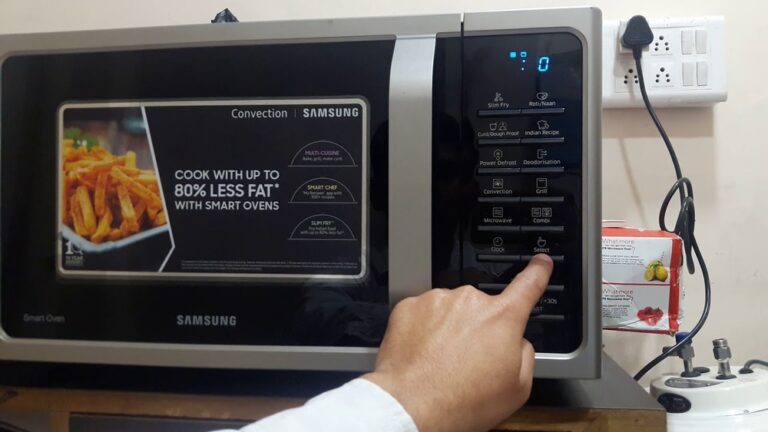
Using The Control Panel Buttons
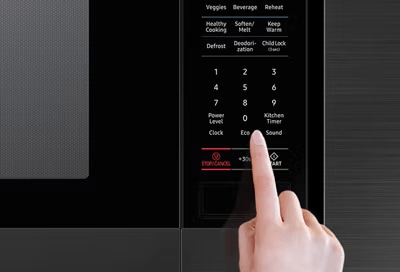
Locate the control panel on your microwave. Press and hold the “0” (zero) button for about 3 seconds. The filter light should turn off, indicating a successful reset. This method works on many Samsung microwave models. Always check your user manual for specific button instructions.
Resetting On Over-the-range Models
For over-the-range Samsung microwaves, find the “Filter Reset” or “Settings” button. Press and hold it for 3 to 5 seconds. The filter light will clear from the display. This step confirms the system recognizes the filter has been cleaned or replaced. Repeat if the light stays on.
Alternative Reset Methods
Some models may require unplugging the microwave for 1 minute. After plugging it back in, the filter light might reset automatically. Another option is pressing the “Stop/Cancel” button twice quickly. These methods offer easy alternatives if the control panel reset does not work. Always try the control panel first.
Troubleshooting Control Panel Issues
Troubleshooting control panel issues is essential to keep your Samsung microwave working well. The control panel lets you use all microwave features. Sometimes, buttons may stop responding or act strangely. This can cause frustration and stop you from using the microwave properly. Simple fixes often solve these problems without needing a repair service.
Cleaning The Touchpad
Dirty touchpads cause unresponsive buttons. Food spills and grease build up over time. Use a soft, damp cloth to wipe the touchpad gently. Avoid harsh chemicals that may damage the surface. Clean regularly to keep buttons working smoothly. Dry the touchpad completely before using the microwave again.
Checking The Door Latch
The door latch affects the control panel’s function. If the door is not properly closed, the microwave may not work. Inspect the latch for dirt or damage. Clean the latch area carefully using a soft cloth. Replace the latch if it looks broken or worn out. Ensure the door clicks firmly when closed to activate the control panel.
Addressing Unresponsive Buttons
Unresponsive buttons can result from electrical glitches. Try resetting the microwave by unplugging it for a few minutes. Plug it back in and test the buttons again. If some buttons still do not work, the control panel may need professional repair. Avoid pressing buttons too hard or fast to prevent damage. Keep the panel clean and dry to maintain its responsiveness.
General Microwave Reset
Performing a general reset on your Samsung microwave can solve common issues. This includes clearing error messages and restoring basic functions. A reset helps the microwave run smoothly and refreshes its settings. Below are simple steps to reset your microwave safely and correctly.
Unplugging For Power Reset
Start by unplugging the microwave from the power outlet. Leave it unplugged for at least one minute. This step clears the microwave’s memory and resets the internal system. After waiting, plug the microwave back into the outlet. This power reset can fix many minor problems.
Setting The Clock After Reset
Once the microwave is powered back on, the display may be blank or show the default time. Set the clock to the correct time for proper operation. Press the clock button, enter the time using the number pad, and then press start. Setting the clock ensures your microwave timer works as expected.

Credit: www.youtube.com
When To Seek Professional Help
Knowing when to seek professional help for your Samsung microwave is important. Some issues go beyond simple filter resets. Professional assistance ensures safety and protects your appliance from damage.
Seek help if the filter light stays on after reset attempts. Strange noises, burning smells, or the microwave not heating are signs to stop and call an expert. Avoid trying repairs that require opening the unit.
Consulting The User Manual
The user manual is a first resource for troubleshooting. It includes safety tips and detailed steps for resetting the filter. Manuals also explain error codes and what actions to take.
Read the manual carefully to understand the microwave’s warning signals. Follow instructions to avoid voiding the warranty. Manuals often guide when to stop DIY fixes and get professional help.
Contacting Samsung Support
Samsung support offers expert advice tailored to your model. They can guide you through advanced troubleshooting steps. Support may recommend authorized service centers for repairs.
Use official Samsung contact channels to avoid scams. Provide your model number and problem details for faster assistance. Professional technicians ensure safe and proper repair of your microwave.
Credit: www.samsung.com
Frequently Asked Questions
How Do I Clear The Filter Alert On My Samsung Microwave?
To clear the filter alert on your Samsung microwave, press and hold the “0” (zero) button for 3 seconds. This resets the filter indicator light. Make sure to clean or replace the filter before resetting to maintain proper function.
How Do I Reset The Filter On My Microwave?
To reset your microwave filter, press and hold the “0” or “1” button for 3 seconds. The filter light will turn off. Clean the filter regularly to maintain performance. Refer to your manual for model-specific instructions.
How To Reset Samsung Filter Alert?
Clean the filter thoroughly. Press and hold the “0” (zero) button for 3 seconds to reset the Samsung filter alert.
Conclusion
Resetting the filter on your Samsung microwave is simple and quick. Just follow the steps carefully to clear the filter light. Regularly cleaning the filters helps your microwave work better and last longer. Don’t ignore the filter alert; it keeps your microwave safe and efficient.
A clean filter means fresher air and better cooking results. Keep your microwave in good shape by resetting the filter after every cleaning. This small task saves time and prevents bigger problems. Enjoy hassle-free use with a properly reset filter indicator.