How to Reset Clock on Samsung Microwave: Quick & Easy Steps
Is your Samsung microwave clock showing the wrong time or just blank? Resetting the clock is easier than you might think, and it can make a big difference in your kitchen routine.
Whether your microwave lost power or you simply want to update the time, this guide will walk you through every step clearly and quickly. You’ll learn how to reset your clock using simple button presses, what to do if the keypad is unresponsive, and tips to keep your microwave running smoothly.
Keep reading to take full control of your Samsung microwave’s clock without any hassle!
Resetting Clock Basics
Resetting the clock on your Samsung microwave is a simple task. It helps keep your cooking on schedule. Knowing the basics makes this process quick and easy. You can set the correct time in just a few steps.
Locate Clock Button
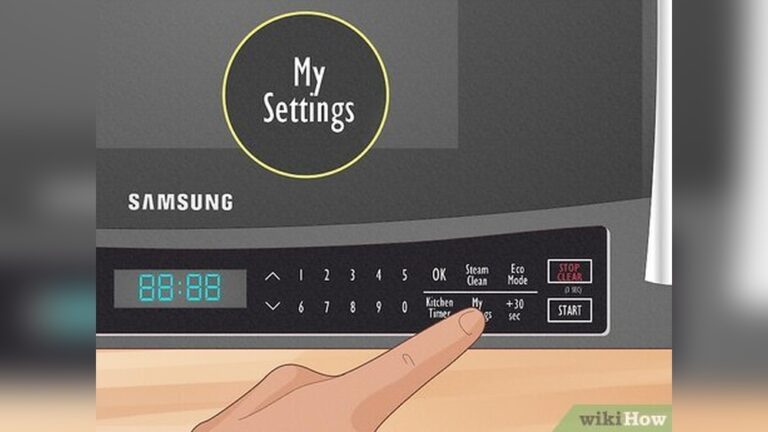
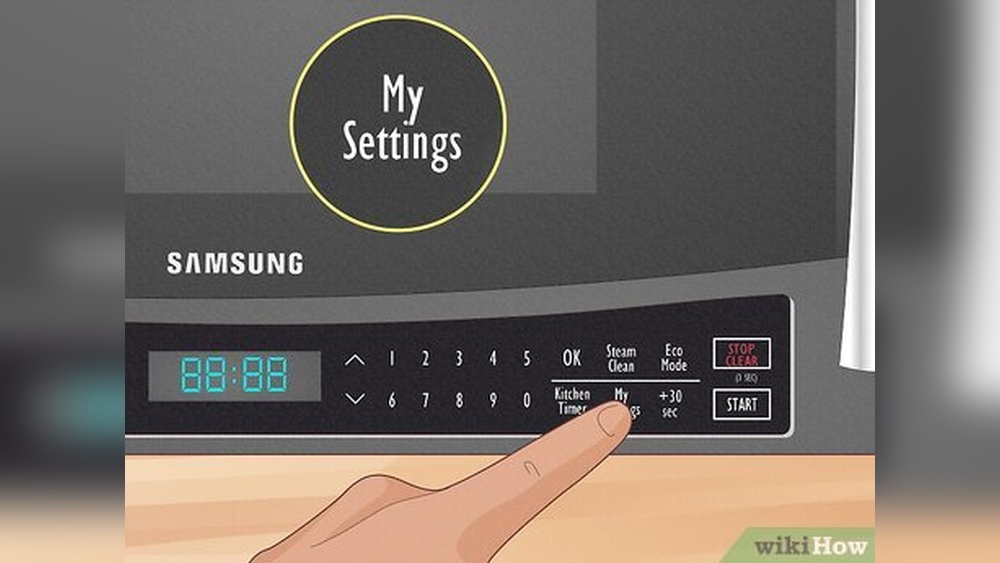
First, find the clock button on the microwave control panel. It usually has a clock icon or says “Clock.” Sometimes, it may be combined with other functions. Press this button to start setting the time.
Using Number Pad
Enter the correct time using the number pad. Use a 12-hour format if your microwave shows AM and PM. For example, press 0 8 3 0 for 8:30. Make sure to enter the numbers carefully to avoid errors.
Saving The Time
After entering the time, press the clock button again or the start button. This saves the new time. The microwave display will show the updated clock. Your microwave is now ready to use with the correct time.

Credit: www.wikihow.com
Model-specific Clock Settings
Samsung microwaves come in various models, each with its own way to set or reset the clock. Knowing your model helps adjust the time correctly. This section guides you through model-specific clock settings. Follow these simple steps to set the clock accurately.
Holding Clock Button
Find the “Clock” button on your microwave panel. Press and hold it for about 3 seconds. The display will start blinking, signaling it is ready for time input. Some models require pressing the “Clock” button twice instead. This step activates the clock setting mode.
Selecting Am Or Pm
After entering the hour, select AM or PM if your microwave uses a 12-hour format. Use the number pad or arrow keys to switch between AM and PM. On some models, you press the “Clock” button again to toggle. Ensuring the correct period avoids confusion later.
Confirming Time Entry
Once you enter the correct time, press the “Clock” button again to confirm. Some microwaves need you to press “Start” or “Enter” instead. The blinking stops, and the clock shows the set time. Your Samsung microwave clock is now updated and ready to use.
Power Cycle To Unfreeze Controls
Sometimes the controls on your Samsung microwave may freeze or stop responding. A simple power cycle can often fix this issue. Power cycling resets the microwave’s electronics and clears any temporary glitches. This process is quick and requires no special tools. Follow these easy steps to power cycle and unfreeze the controls.
Unplugging The Microwave
First, locate the microwave’s power cord. Unplug it from the wall outlet. Keep it unplugged for about one minute. This pause allows the microwave to fully shut down and reset its internal system.
Plugging Back In
After waiting, plug the microwave back into the outlet. Make sure the connection is secure. The microwave will power on and start its reset process. You may hear a beep or see lights flash as it restarts.
Testing Functions
Try pressing different buttons on the control panel. Check if the keypad now responds normally. Test basic functions like setting the clock or starting the microwave. If the controls work, the power cycle fixed the freeze.
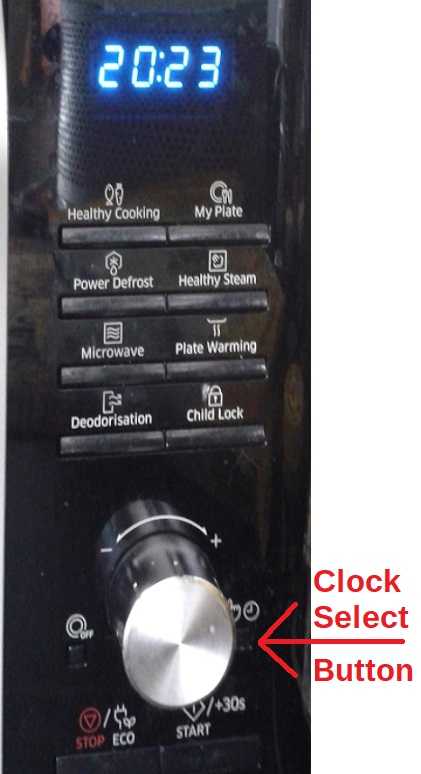
Credit: www.satsig.net
Factory Reset Options
Factory reset options help restore your Samsung microwave to its original settings. This can fix clock errors and other minor issues. Performing a factory reset clears all custom settings, including the clock. It’s a useful step if the microwave clock does not respond or shows the wrong time. Follow the methods below to reset your microwave safely and effectively.
Accessing Reset Menu
Some Samsung microwaves have a built-in reset menu. Press and hold the ‘Options’ or ‘Settings’ button. The control panel will display a menu. Use the arrow keys or control dial to find ‘Reset’ or ‘Factory Reset.’ Select this option to start the reset process. The microwave will clear all settings and reboot. This resets the clock and other functions to default.
Using Control Dial
If your microwave has a control dial, use it to reset the clock. Turn the dial to scroll through settings. Stop at ‘Reset’ or ‘Clock Reset.’ Press the dial or start button to confirm. This method is quick and does not require unplugging the microwave. After resetting, set the clock to the correct time manually.
Consulting User Manual
The user manual contains model-specific reset instructions. Look up the ‘Troubleshooting’ or ‘Settings’ section. Find steps for performing a factory reset or clock reset. Some models require pressing a combination of buttons. The manual explains these steps clearly. If you lost your manual, download it from Samsung’s official website. Following the guide ensures a safe reset without damage.
Maintaining Microwave Performance
Maintaining your Samsung microwave ensures it works efficiently and lasts longer. Regular care helps avoid common issues like slow heating or error messages. Simple upkeep keeps performance steady and reliable. It also prevents unpleasant odors and smoke buildup inside the appliance.
Filters play a key role in keeping the microwave clean and safe. They trap grease and smoke during cooking. Cleaning or replacing these filters improves air flow and cooking results. Proper filter care reduces strain on the microwave’s fan and motor.
Cleaning Or Replacing Filters
Remove the grease and charcoal filters carefully. Wash grease filters with warm, soapy water. Let them dry completely before reinstalling. Replace charcoal filters every 6 to 12 months or as needed. Use filters recommended by Samsung for best fit and function. Clean filters prevent smoke and odors from spreading in your kitchen.
Resetting Filter Light
The filter light signals when filters need attention. After cleaning or replacing filters, reset this light. Press and hold the “Reset” or “Filter” button on the control panel. Hold it for about 3 seconds until the light turns off. This action lets the microwave know the filters are fresh. Resetting the light keeps your microwave alerts accurate and useful.
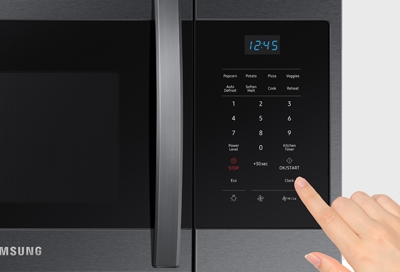
Credit: es-us-284fcd07851162dad.getsmartling.com
Troubleshooting Common Issues
Troubleshooting common issues on your Samsung microwave saves time and avoids frustration. Understanding simple fixes helps you get the microwave working again quickly. This section covers typical problems and clear solutions.
Unresponsive Buttons
Buttons may stop working due to dirt or power glitches. Clean the control panel gently with a soft, damp cloth. Avoid harsh chemicals that can damage the surface.
If cleaning does not help, unplug the microwave for one minute. Plug it back in to reset the system. This often restores button responsiveness.
Check if the child lock feature is active. Press and hold the “Stop/Clear” button for three seconds to disable it. Refer to your user manual for specific instructions.
Error Codes
Samsung microwaves display error codes to signal problems. Common codes include “SE,” “E-01,” or “F-2.” These indicate sensor or key issues.
Write down the error code you see on the screen. Look up the code in your microwave’s manual or Samsung’s support website. Follow the recommended steps to fix the problem.
Sometimes, a simple power reset clears the error. Unplug the microwave for 30 seconds, then plug it back in. If the error returns, call a service technician.
Microwave Not Heating
The microwave may run but fail to heat food. This can result from a faulty magnetron or door switch problem.
First, ensure the door closes fully and the latch clicks. A loose door prevents heating.
Try a power reset by unplugging the microwave for one minute. Plug it back in and test heating.
If the issue remains, the magnetron might need replacement. Contact a qualified technician for repairs. Do not attempt internal repairs yourself.
Frequently Asked Questions
How Do I Reset A Samsung Microwave?
Unplug the Samsung microwave for 1-2 minutes. Plug it back in to reset. For smart models, use the settings menu to find and select “Reset. ” Consult your manual for specific instructions.
How Do I Reset The Clock On My Samsung Microwave Me19r7041fs?
Press the “Clock” button on your Samsung ME19R7041FS microwave. Enter the correct time using the number pad. Press “Clock” or “Start” to save the new time.
How To Reset Clock On Microwave?
Press the “Clock” or “Set Clock” button on the microwave. Enter the correct time using the number pad. Then press “Clock,” “Start,” or “Enter” to save the new time. Some models require holding the clock button or selecting AM/PM before saving.
Conclusion
Resetting the clock on your Samsung microwave is simple and quick. Just follow the clear steps and use the control panel carefully. Keeping the correct time helps your microwave work better every day. If the clock resets often, check the power source or the manual for help.
A set clock makes cooking and timing easier in your kitchen. Practice these steps once, and you will do it easily next time. Enjoy a properly timed microwave for better meal preparation.