How to Change the Time on a Samsung Microwave: Quick & Easy Guide
Struggling to change the time on your Samsung microwave? You’re not alone.
Whether your microwave’s clock is off or you just want to update it, setting the correct time can be confusing if you don’t know where to start. But don’t worry—this simple guide will walk you through every step, so you can fix your clock quickly and get back to cooking without a hitch.
Ready to take control of your microwave’s time settings? Keep reading and you’ll have it set perfectly in no time.
Microwave Clock Basics
Setting the clock on a Samsung microwave helps keep your kitchen on schedule. The clock shows the current time and controls timer functions. Understanding the basic features of the microwave clock makes changing the time easy. This section explains the common clock features and model variations. It guides you through what to expect when adjusting the time on your Samsung microwave.
Common Clock Features
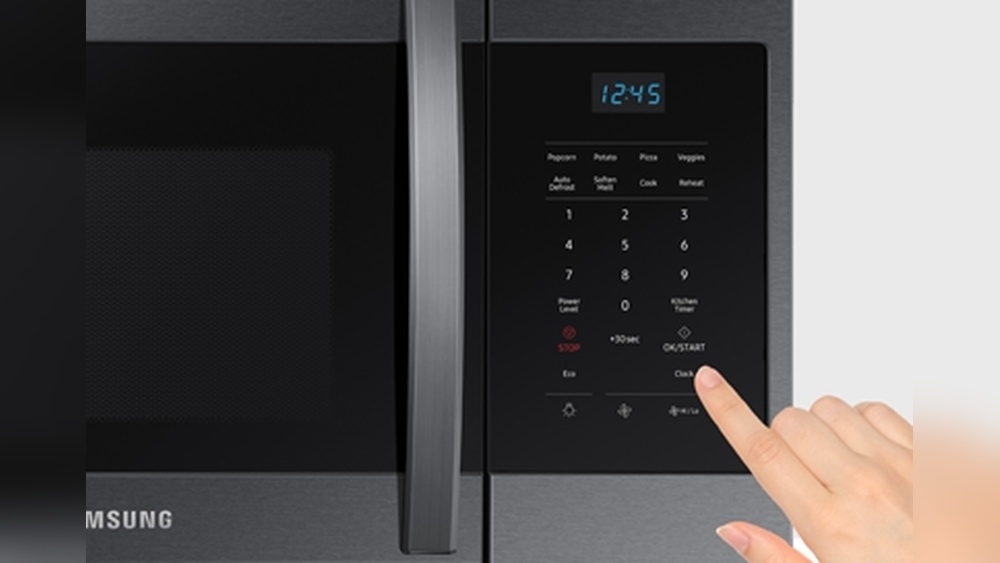
Most Samsung microwaves have a digital clock display on the control panel. The clock shows hours and minutes, often in a 12-hour format with AM and PM indicators. A dedicated “Clock” button is common for setting or changing the time. Some models use the “Power Level” button to switch between AM and PM.
Pressing the “Clock” button once lets you enter the time setting mode. Use the number pad to enter the correct time. Press “Start” or “OK” to save the new time. Some microwaves allow you to change the clock without stopping the current cooking cycle.
Model Variations
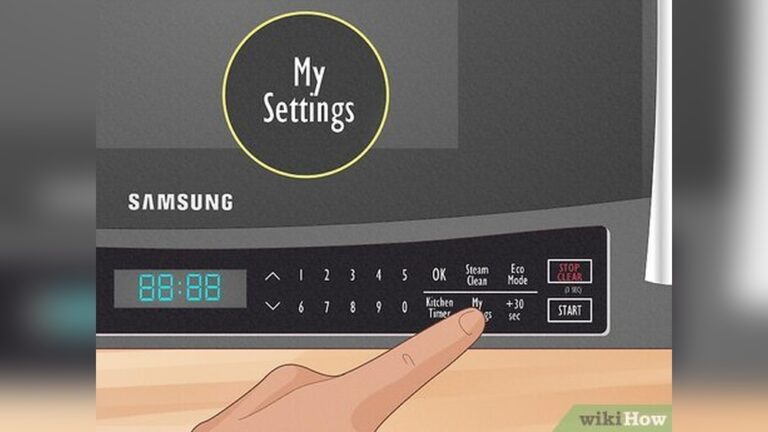
Samsung offers many microwave models, so clock settings can vary slightly. Some models do not have a dedicated “Clock” button. Instead, you may need to press and hold the “Stop/Clear” or “My Settings” button. Then use the number pad to enter the time.
Touchscreen models may have a clock icon on the display. Tap the icon to access time settings. Other models might require navigating through a menu to find the clock setting option.
Check your microwave’s user manual for exact instructions. Variations in model design affect how you set the clock, but the basic idea remains the same. Knowing these differences helps you adjust the time quickly and correctly.
Setting Time With Clock Button
Setting the time on your Samsung microwave is simple using the Clock button. This method lets you quickly adjust the clock to the correct time. Follow these easy steps to set the time accurately.
Accessing Clock Mode
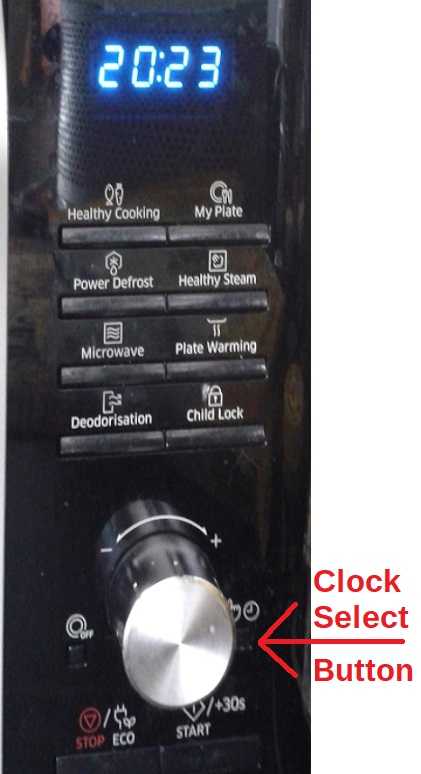
Press the Clock button once to enter clock setting mode. The display will start blinking, showing the current hour. This means you can begin adjusting the time.
Adjusting Hours And Minutes
Use the number pad or the dial to change the hour. After setting the hour, press the Clock button again. The minutes will start blinking. Adjust the minutes the same way.
Switching Am/pm
Press the Clock button once more to toggle between AM and PM. Make sure the correct period is selected for accurate time display.
Confirming Time
After setting hours, minutes, and AM/PM, press the Start or OK button. This confirms the time and stops the blinking. Your microwave clock now shows the correct time.
Changing Time Without Clock Button
Changing the time on a Samsung microwave usually involves the clock button. But some models do not have a dedicated clock button. In such cases, you can still set the time using other buttons. These alternative methods help keep your microwave’s clock accurate without confusion.
Here are simple ways to change the time without using the clock button. Each method uses different buttons available on most Samsung microwaves. Follow the easy steps below to adjust the time quickly.
Using Power Level Button
Press the Power Level button once. The display will start blinking, showing the time setting mode. Use the number pad to enter the correct hour and minutes. Press the Power Level button again to switch between AM and PM if your microwave supports it. Finally, press the Start button to save the new time.
Using Start/ok Button
Hold down the Start or OK button for about three seconds. The clock display will blink, signaling it is ready to be changed. Enter the correct time using the number keys. Press Start or OK once more to confirm and set the time.
Alternative Button Combinations
Some models allow setting the clock by pressing a combination of buttons. Try pressing and holding the Power Level and Stop/Clear buttons together. The clock display will begin to flash. Enter the new time and press Start to save it. If this does not work, check your microwave’s manual for model-specific instructions.
Credit: www.satsig.net
Using My Settings Feature
The “My Settings” feature on Samsung microwaves offers a simple way to customize your device. This feature allows easy adjustment of the clock without complicated steps. It is user-friendly, making it perfect for everyday use.
Using “My Settings” helps you set the time precisely. The process is straightforward and quick. Follow the steps below to navigate and adjust your microwave clock efficiently.
Navigating My Settings
Start by pressing the “My Settings” button on your microwave. The button is usually on the control panel. Use the arrow keys to scroll through options.
Look for the “Clock” or “Time” setting in the menu. Select it by pressing the “Enter” or “OK” button. This action opens the clock adjustment screen.
Adjusting Clock Settings
Use the number pad to enter the correct time. Make sure to set the hours and minutes accurately. Some models allow switching between 12-hour and 24-hour formats here.
Confirm the time by pressing “Start” or “OK.” The microwave display updates immediately. The clock is now set and ready to use.
Setting Time On Samsung Range
Setting the time on your Samsung range helps keep your kitchen on schedule. It ensures your cooking timer and clock display the correct time. The process is simple and can be done using the control panel. Follow these steps to update the time quickly and accurately.
Using Menu And Dial Controls
Start by locating the control panel on your Samsung range. Press the Menu or Settings button to enter the clock settings. Use the dial or arrow keys to select the time option. Turn the dial clockwise or counterclockwise to adjust the hour and minutes. Make sure to set AM or PM if your model uses a 12-hour clock. Confirm your selection by pressing the OK or Start button. The time will appear on the display as you adjust it.
Saving Time Changes
After setting the correct time, you must save the changes to avoid losing them. Press the Start or OK button once more to save the new time. The display will stop blinking, signaling the time is set. If you exit the menu without saving, the clock will revert to the previous time. Check the display to ensure the new time is correct. Your Samsung range will now show the updated time and keep it accurate.

Credit: www.wikihow.com
Smartthings App Method
The SmartThings app method offers a modern way to change the time on your Samsung microwave. This method uses your smartphone to connect and control the microwave. It ensures the clock stays accurate without manual adjustments. Follow the steps below to set up and sync your microwave’s clock using the app.
Connecting To Wi-fi
First, ensure your Samsung microwave supports Wi-Fi connectivity. Open the SmartThings app on your phone. Tap the plus (+) icon to add a new device. Select “Microwave” from the appliance list. Follow the prompts to connect your microwave to your home Wi-Fi network. Make sure your phone and microwave are on the same network for smooth setup.
Syncing Time Via App
Once connected, open your microwave’s settings in the SmartThings app. Find the clock or time settings option. The app will automatically sync the microwave’s clock with your phone’s time. You can also adjust the time manually if needed. Save the changes, and your microwave will update instantly.
Troubleshooting Time Settings
Adjusting the time on a Samsung microwave is usually straightforward. Sometimes, the clock settings may not update as expected. Troubleshooting helps fix these problems quickly. This section guides you through common solutions to fix time setting issues.
Consulting User Manual
Start by checking the user manual. It contains model-specific steps for setting the clock. Manuals often explain button functions and sequences clearly. Look for sections about time or clock settings. This ensures you follow the right method for your microwave.
Resetting Microwave
Resetting can clear minor glitches affecting the clock. Unplug the microwave for about one minute. Plug it back in and try setting the time again. This simple step often fixes frozen or unresponsive displays. It restores the default settings without deleting your data.
Common Issues And Fixes
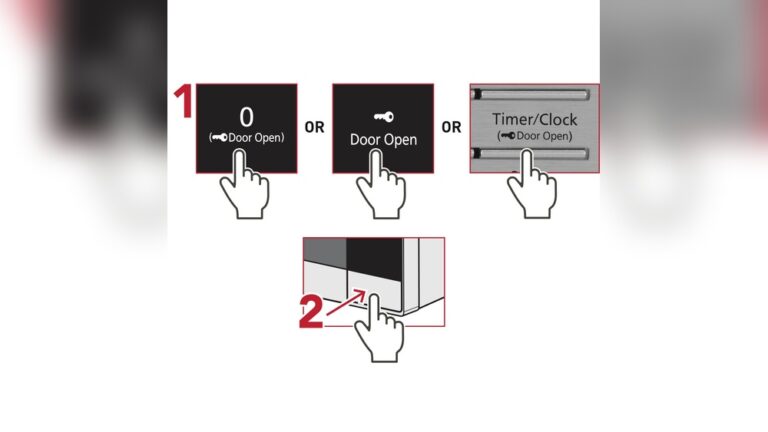
Sometimes, the clock won’t change due to locked controls. Check if the child lock or control lock is on. Disable the lock by holding the lock button for a few seconds. Another issue is confusing AM/PM settings. Press the clock button repeatedly to toggle between AM and PM. If the display blinks or resets, try pressing the start or OK button to confirm the time.

Credit: www.wikihow.com
Tips For Accurate Time
Keeping the time on your Samsung microwave accurate helps with cooking precision and daily convenience. Simple habits make time setting easier and more reliable. Here are key tips to keep your microwave clock correct.
Regular Updates
Check the microwave clock regularly for accuracy. Adjust the time if you notice any drift. Setting the clock once a week helps maintain correct time. This practice avoids cooking delays or early finishes. Frequent updates ensure the microwave stays synchronized with your daily schedule.
Power Outage Handling
Power outages reset the microwave clock to zero. Always reset the time immediately after power returns. Keep the microwave manual or instructions nearby for quick reference. Some models may have a battery backup; check your user guide. Timely resetting avoids confusion and keeps your meals on schedule.
Frequently Asked Questions
How Do I Set The Clock On My Samsung Microwave?
Press the Clock or Timer button on your Samsung microwave. Enter the current time using the number pad. Press Start or OK to confirm. For AM/PM, press the Clock button again to toggle. Check your model’s manual if steps differ.
How Do I Manually Change The Time On My Samsung?
To manually change the time on your Samsung device, open Settings. Select “General Management,” then “Date and Time. ” Turn off “Automatic date and time. ” Tap “Set time” and adjust the clock. Finally, save your changes by tapping “Done” or “OK.
“
How Do I Set The Time On My Samsung Range With No Clock Button?
Press the Menu button on the control panel. Select “Set Time” using the dial knob. Adjust time and confirm by pressing Start or OK. Check your user manual if instructions differ.
Conclusion
Changing the time on your Samsung microwave is quick and simple. Just follow the steps carefully to set the correct clock. Most models use a clock or power level button to adjust the time. Press start or OK to confirm your settings.
If your microwave does not have a clock button, check the manual for model-specific instructions. Keeping the right time helps you cook and reheat food perfectly. Now, your microwave clock will always show the correct time, making your kitchen routine easier.