How to Change the Clock on a Samsung Microwave: Quick & Easy Steps
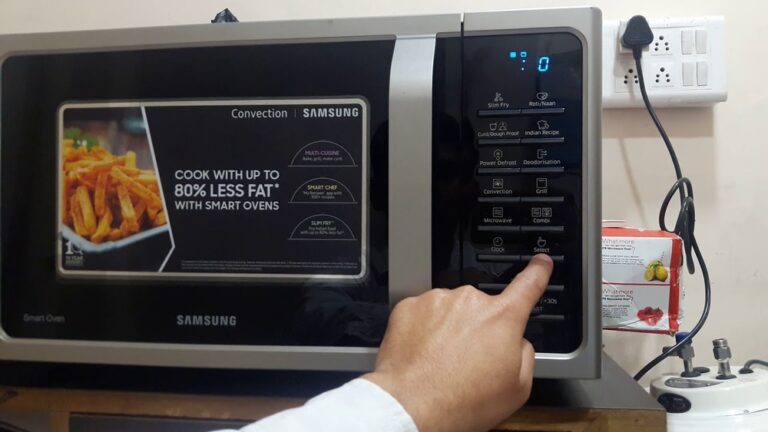
Is your Samsung microwave clock showing the wrong time? It’s a small but important detail that can throw off your cooking schedule and daily routine.
Luckily, changing the clock on your Samsung microwave is easier than you might think. Whether your model has a touchscreen, a dial, or even Wi-Fi connectivity, you’ll find simple, step-by-step instructions right here. By the end of this guide, you’ll have your microwave’s clock set perfectly—no frustration, no guesswork.
Keep reading to make sure your microwave’s time is always spot on!
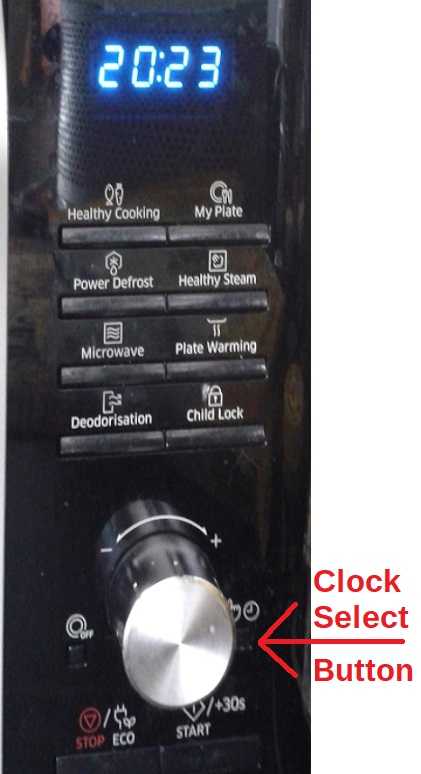
Credit: www.satsig.net
Clock Setup For Touchscreen Models
Setting the clock on Samsung microwave touchscreen models is simple and quick. The touchscreen interface guides you through the process clearly. Follow the steps below to adjust the time accurately.
Locate Menu Or Settings Icon
Look at your microwave’s touchscreen display. Find the Menu icon, usually shown as three horizontal lines. Sometimes, it appears as a gear symbol for Settings. Tap this icon to open the settings menu.
Select Set Time Option
Inside the settings menu, scroll or look for the option labeled “Set Time” or similar. This option allows you to change the clock settings. Tap on it to proceed to the time input screen.
Enter Correct Time
Use the touchscreen number pad to enter the current hour and minutes. Make sure to choose AM or PM correctly if your microwave uses a 12-hour format. Double-check your input before moving on.
Save New Time
After entering the correct time, look for a button labeled “Set,” “OK,” or a checkmark icon. Tap it to save the new clock time. The microwave will update and display the correct time immediately.

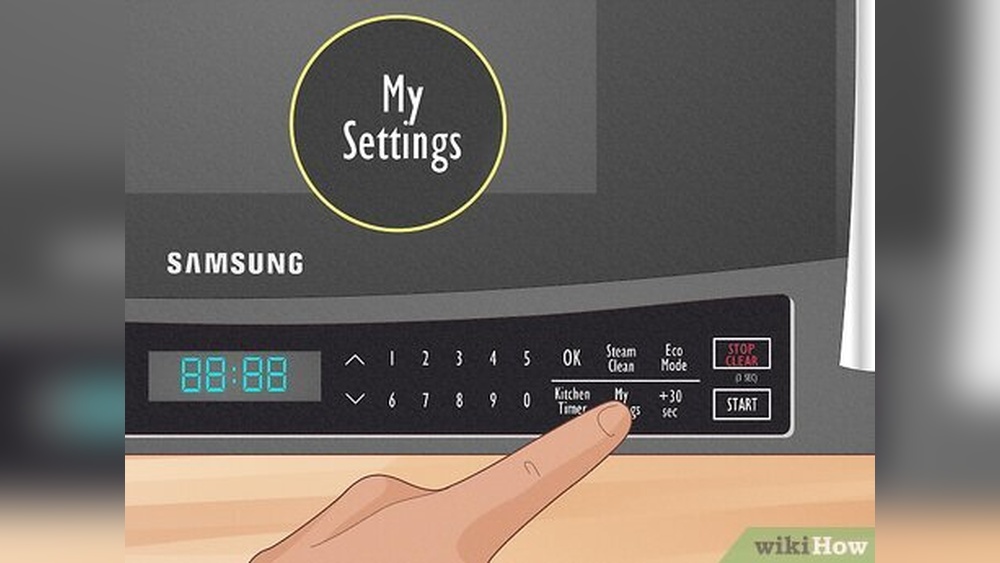
Credit: www.wikihow.com
Clock Setup For Dial Models
Setting the clock on Samsung microwave models with a dial is simple. The dial controls most functions, including the clock setup. Follow these steps to adjust the time accurately. The process ensures your microwave displays the correct time for daily use.
Access Menu Using Dial
Start by pressing the Menu button on your microwave. Use the dial to scroll through the options. Stop when you find the clock or time settings. Press the dial or Enter button to select it. This action takes you to the clock setup screen.
Choose Set Time
Once in the clock menu, turn the dial to highlight “Set Time.” Press the dial to confirm your choice. This selection allows you to change the hour and minutes. The display will show the current time for adjustment.
Adjust Hours And Minutes
Turn the dial slowly to change the hour. Press the dial to move to minutes. Adjust minutes by turning the dial again. Make sure to set AM or PM correctly. Each press confirms the current setting and moves forward.
Confirm Time Setting
After adjusting hours and minutes, press the dial once more. The microwave saves the new time automatically. The clock display updates to show the new setting. Your Samsung microwave is now ready with the correct time.
Using Smartthings App For Wi-fi Models
Using the SmartThings app simplifies changing the clock on Samsung Wi-Fi microwave models. This app connects your microwave to your phone for easy control. Adjusting the clock becomes quick and hassle-free. Follow these steps to set the time accurately.
Connect Microwave To Wi-fi
Start by connecting your microwave to your home Wi-Fi network. Press the Wi-Fi button on the microwave control panel. Follow the on-screen instructions to select your network and enter the password. Wait until the microwave confirms the connection. This step allows remote control through the app.
Open Smartthings App
Launch the SmartThings app on your smartphone. Make sure you are signed in to your Samsung account. In the app, find your microwave among the list of connected devices. Tap on the microwave icon to open its control panel. This interface lets you manage settings, including the clock.
Enable Time Sync Feature
Inside the microwave control panel, look for the time settings. Locate the option called “Time Sync” or similar. Turn on this feature to sync the microwave clock with your phone’s time. The microwave updates automatically with the correct time from your phone. This keeps the clock accurate without manual changes.
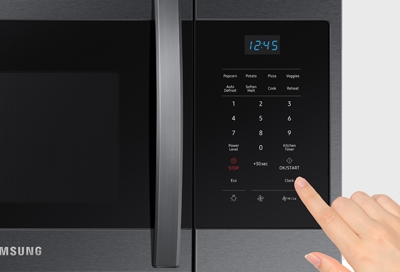
Credit: es-us-284fcd07851162dad.getsmartling.com
Troubleshooting Clock Settings
Sometimes the clock on your Samsung microwave may not show the correct time. Troubleshooting the clock settings helps fix common issues quickly. Follow simple steps to ensure your microwave clock works properly. This saves time and avoids frustration during cooking.
Refer To User Manual
Start by checking the user manual that came with your microwave. The manual provides clear instructions for setting and adjusting the clock. It also explains error codes and common problems. Having the manual nearby can make the process easier and faster.
Check Model-specific Instructions
Samsung microwaves have different models with unique clock settings. Some models use touch screens, others have dials or buttons. Look for instructions that match your exact model number. This ensures you follow the correct method for setting the time.
Reset Microwave If Needed
If the clock still does not work, try resetting your microwave. Unplug it from the power source and wait about one minute. Plug it back in to clear any errors. After resetting, set the clock again following the manual’s steps. This often fixes glitches in the clock display.
Frequently Asked Questions
How Do I Change The Clock Time On My Samsung Microwave?
Tap the Menu or Settings icon on your Samsung microwave’s display. Select “Set time,” enter the correct hour and minutes, then press “Set” or “OK” to save. For Wi-Fi models, use the SmartThings app to sync the clock automatically.
How Do I Set The Clock On My Samsung Range Without The Clock Button?
Tap the Menu or Settings icon on your Samsung range’s display. Select “Set time,” enter the correct hour and minutes, then confirm. For Wi-Fi models, use the SmartThings app to sync the clock automatically. Refer to your manual if needed.
How Do I Change The Clock On My Samsung?
To change the clock on your Samsung, tap the Menu or Settings icon. Select “Set time,” enter the correct time, and confirm. For dial models, use the dial to select and set time. Wi-Fi models can sync time via the SmartThings app.
Conclusion
Changing the clock on your Samsung microwave is quick and easy. Follow the steps for your model type carefully. Use the menu or dial to set the correct time. Confirm your entry to save the new clock setting. Keeping the clock accurate helps you cook with confidence.
Simple instructions make this task hassle-free for everyone. Now, enjoy using your microwave with the right time displayed.