How to Set Time on a Samsung Microwave: Quick & Easy Guide
Setting the correct time on your Samsung microwave might seem like a small detail, but it makes a big difference in your daily kitchen routine. Imagine knowing exactly when your food will be ready or having the clock display that matches your home’s time—no guessing, no confusion.
If you’ve been struggling to figure out how to set the clock on your Samsung microwave, you’re in the right place. This simple guide breaks down the steps clearly, so you can get it done quickly and easily. Keep reading, and you’ll have your microwave’s clock set perfectly in just a few moments.
Setting Clock On Samsung Microwave
Setting the clock on your Samsung microwave helps keep your kitchen on schedule. It also ensures the timer and cooking functions work accurately. The process is simple and quick. You can set the time using different methods depending on your model. Follow these easy steps to get your microwave clock showing the correct time.
Using The Clock Button
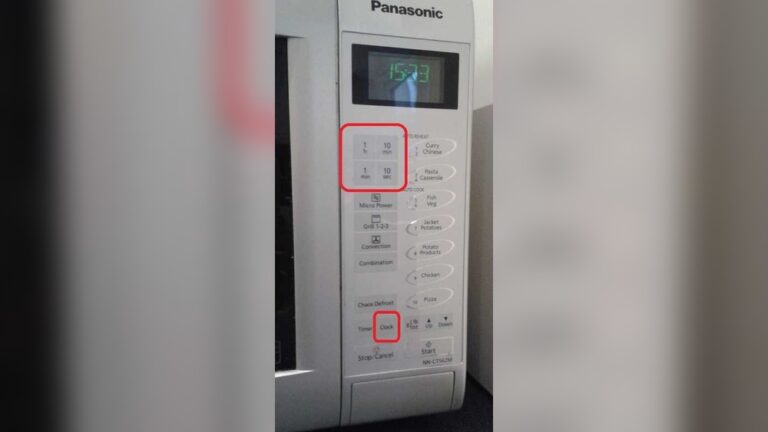
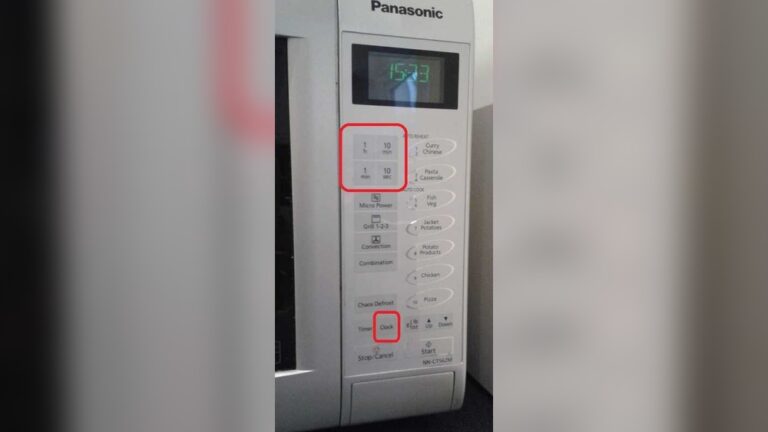
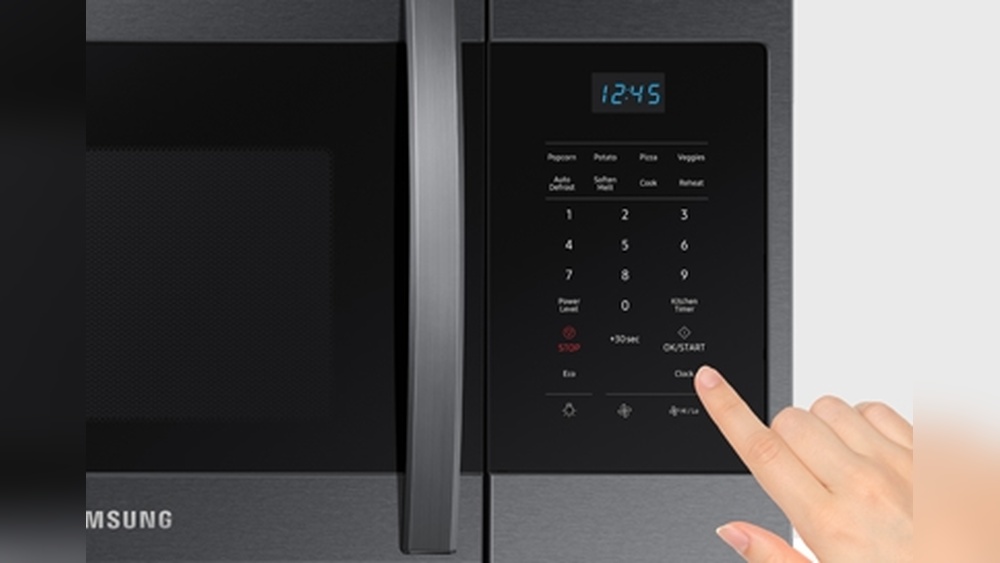
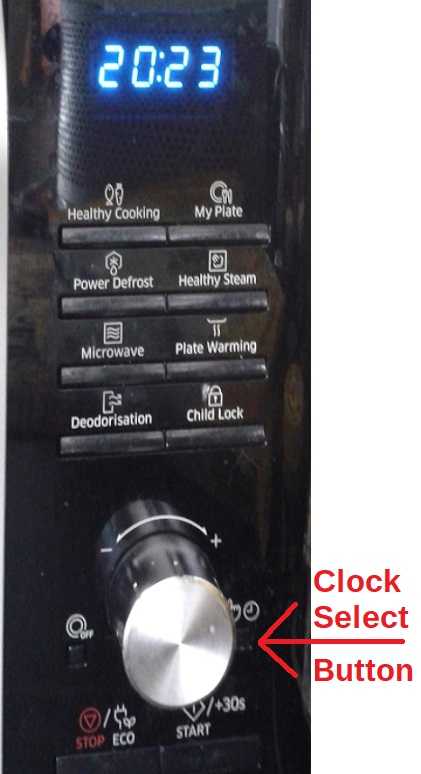
Start by pressing the “Clock” button on the microwave control panel. The display will begin to blink, signaling it is ready for time input. This step activates the clock setting mode. If your microwave does not have a dedicated clock button, check for a “Settings” or “Menu” option instead. Press the clock button once more after entering time to save your setting.
Entering Time With Number Pad
Use the number pad to enter the current time. For example, press 1-2-3-0 for 12:30. Make sure to input the time in a four-digit format. Leading zeros are important for times before 10 o’clock. Entering time correctly prevents confusion later. Double-check the numbers before saving the time.
Selecting Am Or Pm
Many Samsung microwaves allow you to set AM or PM after entering the time. Use the dedicated AM/PM button or press the clock button again to switch between options. The display will indicate if it is set to AM or PM. This feature helps to avoid cooking at the wrong time. Confirm your choice by pressing the clock or start button.
Adjusting Time On Different Models
Adjusting the time on a Samsung microwave varies by model. Different models have unique controls and settings. Understanding these differences helps set the clock quickly. Below, learn how to set time on standard and smart Samsung microwaves. Also, explore using dials and menu options for precise adjustments.
Standard Models
Standard Samsung microwaves usually have a numeric keypad and a clock button. Press the clock button once to enter time-setting mode. Use the number keys to input the current time. Press the clock button again to confirm. The display will show the updated time instantly.
If your model has a start or enter button, press it after entering the time. This saves the setting and exits the clock mode. Standard models keep it simple with straightforward steps for time adjustment.
Smart Microwave Models
Smart Samsung microwaves come with touchscreens or advanced control panels. Start by tapping the settings or menu icon on the display. Look for the clock or time option in the menu. Select it to open the time-setting screen.
Use the touchscreen to set hours and minutes. Some models allow you to swipe or tap arrows to adjust time. Confirm your input by pressing the save or OK button. Smart models often sync time with your home Wi-Fi network, offering automatic updates.
Using Dial And Menu Options
Some Samsung microwaves feature a dial or rotary knob alongside buttons. Rotate the dial to select the clock or time option. Press the dial or a nearby button to confirm your choice. Turn the dial again to set the hour and minute values.
Once the time is set, press the dial or confirm button to save. Menu-based models may require navigating through a few screens. Follow on-screen prompts carefully for accurate time adjustment. This method works well on models without numeric keypads.
Resetting Your Samsung Microwave
Resetting your Samsung microwave can solve many common problems. It helps fix frozen displays, unresponsive buttons, and clock errors. Resetting clears minor software glitches without complex steps. There are simple ways to reset your microwave safely at home.
Power Cycling The Microwave
Unplug the microwave from the power outlet. Wait for 1 to 2 minutes. This lets the microwave fully power down. Plug it back in and check if it works. Power cycling often resets the clock and controls.
This method fixes minor errors quickly. It also clears temporary software bugs. Use power cycling if the microwave screen is frozen or not responding.
Factory Reset Via Settings
Some Samsung microwaves have a reset option in the settings menu. Press and hold a special button like “Options” or “Trainer”. Use the dial to find the “Reset” function. Confirm to restore factory settings.
Factory reset erases custom settings. The microwave returns to original factory defaults. Check your microwave manual for exact steps. This reset can fix deeper software issues.
Cleaning Filters To Fix Issues
Dirty filters affect microwave performance and controls. Remove the grease and charcoal filters under the microwave. Wash or replace them if clogged or dirty. Clean filters help the microwave work smoothly.
Regular filter cleaning stops overheating and errors. It also improves cooking efficiency. Clean filters can resolve some control panel problems without a reset.

Credit: www.wikihow.com
Troubleshooting Clock Setting Problems
Setting the clock on your Samsung microwave should be simple. Sometimes, the clock does not set properly or the controls do not work as expected. These problems can cause frustration and delay your cooking. Troubleshooting common clock setting issues helps fix your microwave quickly. Follow these tips to solve the most frequent problems.
Unresponsive Control Panel
The control panel may not respond due to power issues or dirt. Start by unplugging the microwave for 30 seconds, then plug it back in. This can reset the system and restore control panel function.
Clean the buttons gently with a soft cloth. Dirt or grease can block button presses. Avoid using harsh chemicals that may damage the panel.
Check if the child lock or control lock is active. This feature disables buttons to prevent accidental use. Refer to your user manual to unlock the panel.
Error Codes Related To Clock
Sometimes, the microwave displays error codes when the clock fails to set. Common codes include “Err” or “E1.” These signals often point to a technical problem.
Consult your Samsung microwave manual for specific error codes and their meanings. Resetting the microwave by unplugging it may clear minor errors.
If the error persists, it could indicate a faulty clock board or control panel. Avoid attempting internal repairs unless you are trained.
When To Contact Support
Contact Samsung support if the clock setting issues remain after basic troubleshooting. Persistent problems may require professional repair or part replacement.
Keep your model number and purchase details ready before calling. This helps the support team give faster and accurate assistance.
Use official Samsung service centers to ensure genuine parts and proper repairs. Avoid third-party repairs that might void your warranty.
Tips For Maintaining Microwave Clock
Keeping your Samsung microwave clock accurate improves daily use. Proper maintenance helps avoid frequent resets and confusion. Follow simple steps to keep the clock running smoothly.
Avoiding Power Interruptions
Power cuts reset the microwave clock often. Use a surge protector to guard against sudden power loss. Avoid unplugging the microwave unless necessary. Consistent power supply keeps the clock stable and reliable.
Regular Filter Maintenance
Grease and dust build-up affect microwave performance. Clean or replace filters regularly to prevent damage. A clean microwave runs better and keeps settings intact. Follow the manual for proper filter care instructions.
Updating Firmware On Smart Models
Some Samsung microwaves have smart features needing updates. Check for firmware updates in the settings menu. Updating fixes bugs that may affect the clock. Keep the microwave connected to Wi-Fi for easy updates.

Credit: www.wikihow.com
Credit: www.satsig.net
Frequently Asked Questions
How To Set The Clock On Samsung?
Press the “Clock” button on your Samsung microwave. Use the number pad to enter the correct time. Press “Start” or “Clock” again to confirm.
How Do I Reset A Samsung Microwave?
Unplug your Samsung microwave from the power outlet. Wait 1-2 minutes, then plug it back in. This resets the microwave. For smart models, access the settings menu, find the “Reset” option, and select it. Consult your manual for model-specific instructions.
How Do I Change The Time On A Microwave?
Press the “Clock” or “Time” button on the microwave. Use number keys to enter the correct time. Press “Start” or “Clock” again to confirm.
Conclusion
Setting the time on your Samsung microwave is simple and quick. Follow the steps carefully to avoid mistakes. A properly set clock helps with accurate cooking times. Remember to consult your microwave’s manual if needed. Regularly checking the clock keeps your microwave running smoothly.
Now, you can enjoy using your microwave with confidence and ease.