How to Operate Samsung Microwave: Easy Steps for Perfect Cooking
Are you ready to make your cooking faster and easier with your Samsung microwave but aren’t quite sure how to get started? You’re not alone.
Many people find microwaves confusing at first, but once you know the simple steps, you’ll wonder how you ever lived without it. Whether you want to quickly heat leftovers, defrost frozen meals, or use smart cooking presets, this guide will walk you through every function your Samsung microwave offers.
By the end, you’ll feel confident operating your microwave like a pro, saving you time and hassle in the kitchen every day. Keep reading to unlock the full potential of your Samsung microwave and transform your cooking experience!
Credit: www.samsung.com
Microwave Basics
Operating a Samsung microwave is simple and fast. It saves time in the kitchen. Understanding the basics helps you cook food evenly and safely. This section covers the first steps to get your microwave ready. It also explains important safety rules to follow.
Setting Up The Microwave
Choose a flat, stable surface for your microwave. Leave space around it for air circulation. Plug it into a proper electrical outlet. Do not use extension cords. Open the microwave door and remove all packaging. Wipe the inside with a damp cloth to clean dust.
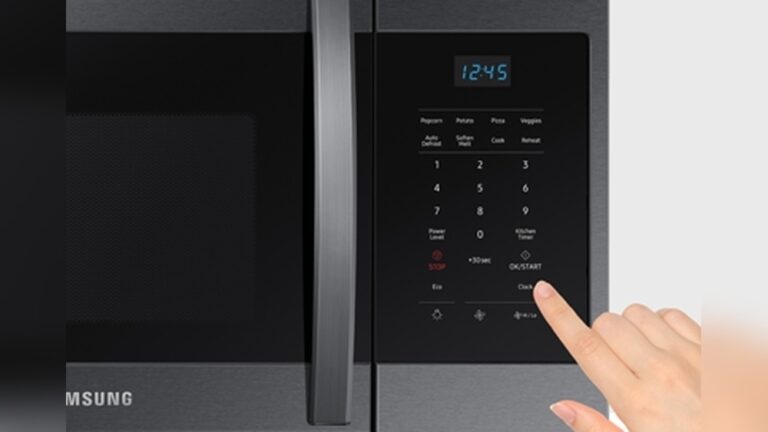
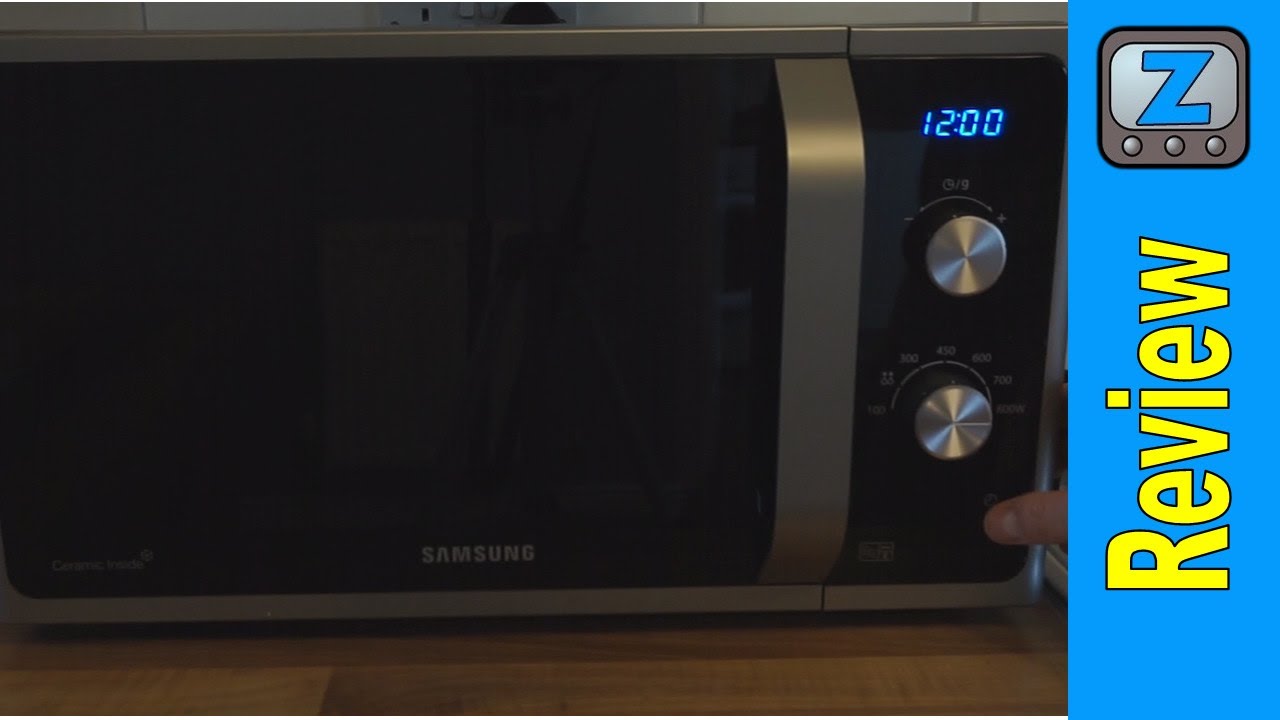
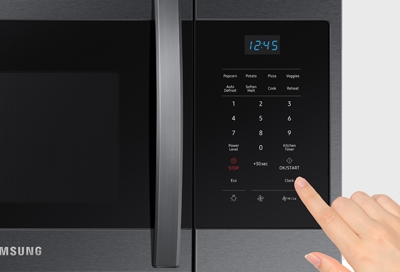
Set the clock by pressing the clock button. Use the number pad to enter the time. Press start to save the time. This helps the microwave show correct time and run preset functions. You are now ready to start cooking.
Safety Precautions
Always use microwave-safe containers. Avoid metal or aluminum foil inside the microwave. Keep the door closed during cooking. Do not operate if the door is damaged. Supervise children when they use the microwave.
Clean spills quickly to avoid odors and smoke. Use oven mitts to handle hot dishes. Let food stand for a few minutes after cooking. This helps heat spread evenly. Follow these safety rules to prevent accidents and keep your microwave working well.
Credit: www.youtube.com
Manual Cooking Steps
Manual cooking lets you control time and power for your food. You can cook exactly how you want by setting the time yourself. This method works well for reheating or cooking simple meals.
Follow these steps to cook food manually in your Samsung microwave. Each step is easy and quick to do.
Placing Food Properly
Put your food in a microwave-safe dish. Avoid metal or foil containers. Place the dish in the center of the turntable. This helps cook food evenly. Close the microwave door firmly.
Setting Cooking Time
Use the number pad to enter cooking time. For example, press 1-2-0 for 1 minute 20 seconds. Adjust the time based on food type and quantity. Some models have a dial to set the time. Make sure to check your microwave model’s instructions.
Starting And Stopping
Press the START or OK button to begin cooking. The microwave will run for the set time. To stop early, press the STOP or CANCEL button. The microwave beeps when cooking finishes. Open the door carefully to remove your food.
Using Auto Cook Functions
Using the auto cook functions on your Samsung microwave makes cooking easier and faster. These preset options adjust time and power for common foods. You just select the function and let the microwave do the rest. This saves guesswork and helps avoid overcooking or undercooking your meals.
Auto Defrost
Auto Defrost quickly thaws frozen food based on weight. Enter the weight of your item, and the microwave sets the best defrosting time. It uses lower power to gently thaw food without cooking it. This feature works well for meat, poultry, and fish.
Auto Cook Options
Samsung microwaves include several Auto Cook options for popular dishes. Options may include popcorn, vegetables, beverages, and more. Choose the food type from the menu, and the microwave adjusts power and time. This simplifies cooking common meals perfectly every time.
Sensor Cook Feature
The Sensor Cook feature uses built-in sensors to detect steam from your food. It automatically adjusts cooking time and power for best results. This helps avoid overcooking and saves energy. You simply place food inside, select Sensor Cook, and start the microwave.
Speed Cook Mode
Speed Cook Mode offers quick cooking for busy days. It uses higher power for shorter times to heat food fast. You can use it for reheating leftovers or cooking simple meals. This mode balances speed and quality for convenient meal prep.
Credit: es-us-284fcd07851162dad.getsmartling.com
Adjusting Power Levels
Adjusting power levels on your Samsung microwave helps cook food evenly. It controls how strong the microwave heats your food. Setting the right power level stops overcooking or undercooking. This feature is useful for different food types and recipes.
Selecting Power Settings
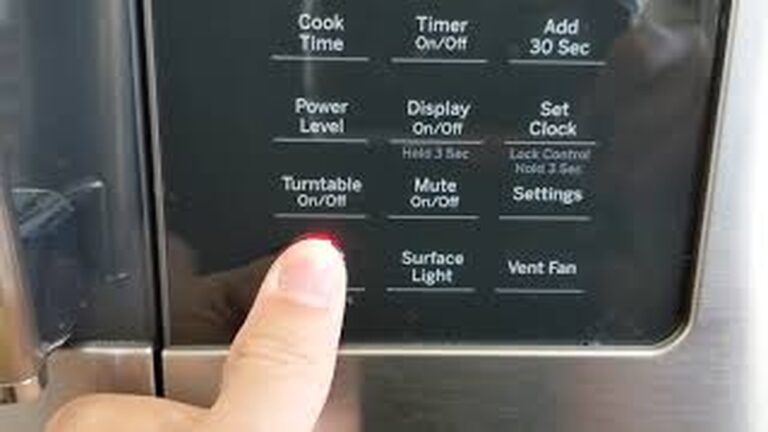
Press the Power Level button on the control panel. Use the number keypad to choose a level from 1 to 10. Level 10 is the highest power, good for quick heating. Lower levels use less power and cook food slower. After selecting, enter the cooking time and press Start.
When To Use Different Levels
Use high power for boiling water or reheating leftovers fast. Medium power suits cooking vegetables or defrosting meat gently. Low power is best for softening butter or melting chocolate. Adjust power to avoid burning or drying food. Practice with different settings to find what works best.
Clock And Timer Settings
The clock and timer settings on your Samsung microwave help manage cooking time and keep your kitchen on schedule. Setting the correct clock ensures the microwave shows the right time. Using the timer lets you track cooking or other kitchen tasks separately from microwave cooking.
Setting The Clock
Press the “Clock” button on the control panel. Enter the current hour using the number pad. Press the “Clock” button again to confirm. Now enter the minutes and press “Clock” to set the time. The display will show the new time.
Some models require you to select AM or PM after entering the time. Use the number pad to choose 1 for AM or 2 for PM. Press “Start” or “OK” to finish setting the clock.
Using Timer Functions
Press the “Timer” button to start the timer mode. Enter the desired time with the number pad. Press “Start” to begin the countdown. The timer will run without cooking food.
The timer will beep when the countdown ends. Press the “Stop” or “Cancel” button to clear the timer. This function helps you time other tasks while cooking with the microwave.
Troubleshooting Tips
Troubleshooting your Samsung microwave can save time and avoid service calls. Problems may appear simple but need careful checks. Basic fixes often restore normal function quickly. Follow these steps to identify and solve common issues. Keep your microwave working well with easy troubleshooting tips.
Checking Power Source
Ensure the microwave is plugged into a working outlet. Test the outlet with another device to confirm power. Check if the circuit breaker or fuse box is tripped. Reset the breaker or replace fuses if needed. Power interruptions often cause the microwave not to start.
Inspecting Door And Fuse
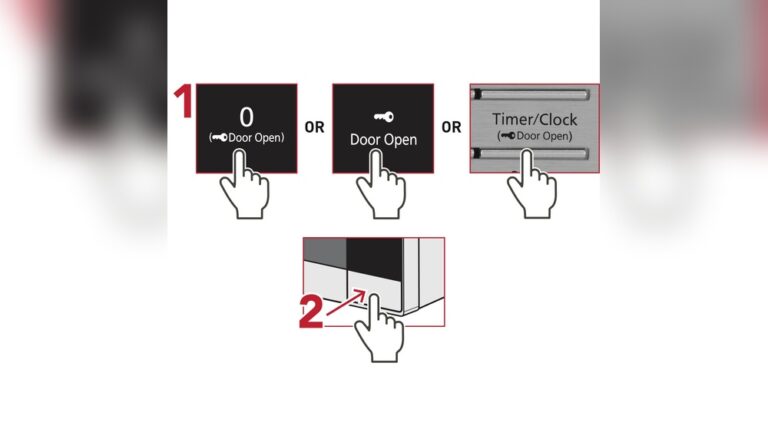
Open and close the microwave door firmly. The door switch must activate for the microwave to run. Look for broken or loose door latches. Replace faulty door switches or latches promptly. Locate the microwave fuse inside the unit. A blown fuse stops the microwave from working. Replace the fuse with the same type and rating.
Common Issues And Fixes
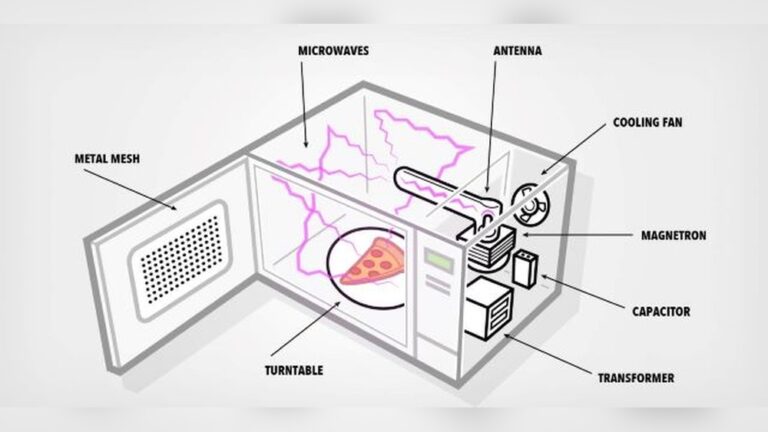
The microwave not heating is a frequent problem. This can be due to a faulty magnetron or diode. Check for unusual noises or burning smells. Use a multimeter to test key parts. Another issue is the microwave stopping mid-cycle. This may be caused by overheating or sensor errors. Allow the microwave to cool and try again. Error codes on the display often indicate specific problems. Consult the user manual for code meanings and solutions.
Frequently Asked Questions
How Do I Operate My Samsung Microwave?
Place food inside and close the door securely. Set cooking time using number buttons or select an automatic function. Press START to begin. The microwave beeps and stops when done. Press STOP or open the door to cancel cooking anytime.
How To Get A Samsung Microwave To Work?
Place food inside the microwave and close the door securely. Set cooking time using number buttons. Press START or OK/START to begin cooking. Use Auto Cook or Auto Defrost functions for preset options by selecting the function and entering food weight if needed.
How To Use Samsung Smart Microwave Oven For The First Time?
Place food in a microwave-safe dish and close the door. Set cooking time using number buttons. Press START to begin. Use Auto Cook or Auto Defrost for presets by selecting the function and entering food weight. The microwave stops and beeps when cooking finishes.
Conclusion
Operating a Samsung microwave is simple and convenient. Just place your food inside and set the time or choose a preset function. Use clear buttons and follow the prompts for best results. Always close the door firmly before starting. Keep the microwave clean to maintain performance.
With these easy steps, you can heat or cook meals quickly and safely. Practice a few times to feel confident. Enjoy the convenience this kitchen tool brings every day.