How to Change Time on Samsung Microwave: Quick & Easy Guide
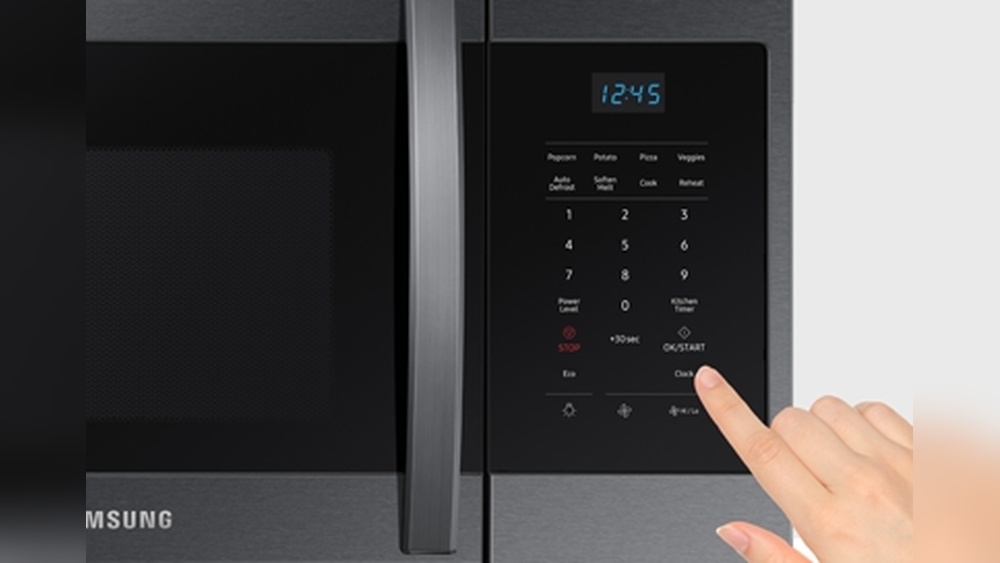
Is your Samsung microwave showing the wrong time? It can be frustrating when the clock doesn’t match your schedule, especially when you rely on it for quick meals and timely reminders.
But don’t worry—you can easily change the time on your Samsung microwave in just a few simple steps. Whether your model has a dedicated “Clock” button or you need to use the “Power Level” button, this guide will walk you through the process clearly and quickly.
Keep reading, and you’ll have your microwave’s clock set perfectly in no time!
Locate Clock Or Power Level Button
Locating the clock or power level button is the first step to change time on your Samsung microwave. These buttons control the clock settings and power levels.
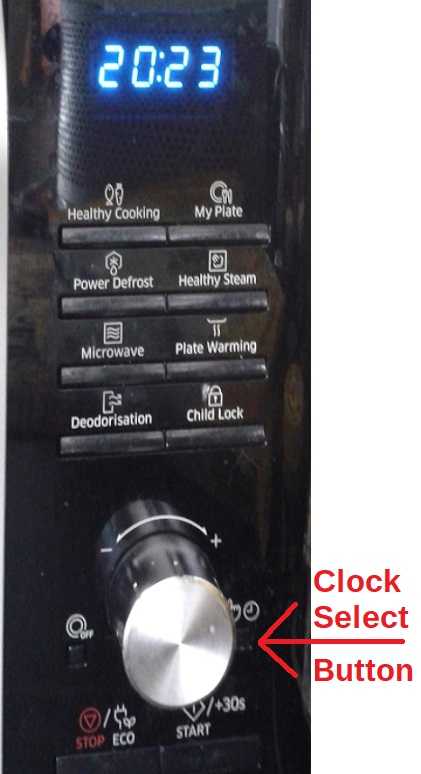
Not all Samsung microwaves have a button labeled “Clock.” Sometimes, the clock function shares a button with the power level setting. Look closely at your microwave’s control panel.
The “Power Level” button often has a small clock icon underneath or nearby. This icon shows the button’s dual use. Recognizing this button is key to setting the correct time.
Identify The Clock Button On Your Model
Examine the control panel for a button labeled “Clock.” It may be a separate button or combined with another function.
If you see a button with a clock icon, this is the one to press for time settings. Press and hold it for a few seconds to start changing the time.
Find The Power Level Button With Clock Icon
Look for the “Power Level” button if no clock button exists. Check under or near it for a small clock symbol.
Press and hold this button for about three seconds. You will hear a beep, and the display will flash, indicating the clock mode is active.
Confirm Button Function Before Setting Time
Ensure the button you found activates clock settings. Press and hold it until the time display flashes. This confirms you can set the time.
If the display does not flash, try the other button or check your microwave’s manual for model-specific instructions.

Credit: www.wikihow.com
Activate Clock Setting Mode
Activating the clock setting mode on your Samsung microwave is the first step to change its time. This mode lets you adjust the clock easily by entering the correct time.
Once activated, the microwave display will flash, showing it is ready for the new time input. This clear signal ensures you know when to enter the time.
Press And Hold The Clock Or Power Level Button
Locate the “Clock” button on your microwave. If it is not visible, find the “Power Level” button with a small clock icon beneath it.
Press and hold the chosen button for three seconds. You will hear a beep sound, and the display will start to flash.
Enter The Correct Time
Use the number pad to enter the current time. Make sure to input the hour first, then the minutes for accuracy.
Press the “Clock” or “Power Level” button again to switch between AM and PM. The display will show your selection.
Save The New Time
Press the “OK” or “Start” button to confirm the time. A colon will appear on the screen, indicating the clock is set.
Enter Time Using Number Pad
Entering time using the number pad on your Samsung microwave is simple and direct. This method lets you set the exact time quickly without scrolling through numbers. It provides control and accuracy for your clock settings.
Start by pressing and holding the “Clock” or “Power Level” button for three seconds. The microwave will beep, and the display will flash. This means the clock is ready to receive your input.
Press and hold the “Clock” or “Power Level” button until the display flashes. This action activates the clock setting mode. It signals the microwave to accept new time data.
Enter The Time Using Number Pad
Use the number pad to type the current time. For example, for 3:45, press 3, 4, and 5 consecutively. The display will show the numbers as you enter them.
Press the “Clock” or “Power Level” button again to toggle between AM and PM. The display will indicate which one is selected. Choose the correct option for your time.
Confirm And Set The Time
Press the “Start” or “OK” button to save the time. A colon will appear on the screen, confirming the time is set. Your Samsung microwave clock is now updated.
Select Am Or Pm
The Samsung microwave clock uses a 12-hour format with AM and PM options. Selecting the correct AM or PM ensures the microwave shows the right time. This step is important after entering the hour and minute.
After typing the time, the display will wait for you to choose between AM or PM. The microwave lets you toggle easily until you find the right setting.
Select Am Or Pm Using The Clock Button
Press the “Clock” button once more after entering the time. The display will switch between AM and PM each time you press it. Stop pressing when the correct option appears.
Select Am Or Pm Using The Power Level Button
On some Samsung models, press the “Power Level” button to toggle AM or PM. Each press changes the setting. Choose the right one before moving forward.
Confirm Your Am Or Pm Selection
Once you select AM or PM, press the “Start” or “OK” button. This saves your choice and finishes the clock setup. The microwave will beep and show the time with a colon.
Confirm And Save Time
After entering the correct time on your Samsung microwave, the next step is to confirm and save it. This step ensures the microwave clock shows the accurate time. Without saving, the microwave might revert to the old time or display an error.
Confirming and saving the time is simple. The microwave will guide you through with flashing digits and beep sounds. Follow these steps carefully to set the clock properly.
Press The Confirmation Button
Once you enter the time, press the OK or Start button. This action tells the microwave you want to save the new time. The display will stop flashing, showing the time is locked in.
Look For The Colon Symbol
Check the microwave display for a blinking colon (:) between the hour and minutes. This colon confirms the clock is active and the time is saved correctly. If the colon is missing, the time might not be set properly.
Wait For The Microwave To Return To Standby
After confirmation, the microwave will stop flashing and return to standby mode. This means it is ready for normal use. Now, your new time setting will stay until you change it again.
Credit: www.satsig.net
Adjust Time Via Smartthings App
Troubleshooting common issues helps fix time-setting problems on Samsung microwaves. Some models differ in controls and features. Problems like missing buttons or wrong formats may confuse users. Understanding simple fixes saves time and keeps your microwave working well.
No Clock Button Available
Some Samsung microwaves lack a dedicated clock button. Look for the “Power Level” button instead. Press and hold it for three seconds to start setting the time. A flashing display shows the clock is ready for input. Use the number pad to enter the correct time. Press the same button again to confirm and select AM or PM. Finally, press “Start” to save the time.
Incorrect Time Format
Microwaves may show time in 12-hour or 24-hour format. Check your model’s manual for the default setting. To change between formats, access the clock setting mode. Press and hold the clock or power button. Enter the time and cycle through AM/PM options. Some models switch formats automatically when you toggle AM/PM. Confirm by pressing “Start” or “OK”.
Syncing Time With App
Newer Samsung microwaves can sync time with a smartphone app. Download the Samsung SmartThings app. Connect your microwave via Wi-Fi following app instructions. The app updates the microwave’s clock automatically. Make sure your phone’s time is correct before syncing. If syncing fails, restart the microwave and phone. Try reconnecting through the app to fix syncing issues.

Credit: www.wikihow.com
Frequently Asked Questions
How Do I Change The Clock On My Samsung Microwave?
Press and hold the “Clock” or “Power Level” button for 3 seconds. Enter the time using the number pad. Press the button again to select AM/PM. Finally, press “Start” or “OK” to save the time.
How Do I Manually Change The Time On My Samsung?
Press and hold the “Power Level” button for 3 seconds until the display flashes. Enter the time, press “Power Level” to select AM/PM, then press “Start/OK” to set the clock.
How Do I Set The Clock On My Samsung Range Without The Clock Button?
Press and hold the “Clock” or “Power Level” button for 3 seconds. Enter the time using the number pad. Press the button again to select AM/PM. Finally, press “Start/OK” to set the clock on your Samsung microwave MC17T8000CS.
Conclusion
Changing the time on your Samsung microwave is simple and quick. Just press and hold the right button, enter the time, and confirm. This helps keep your microwave’s clock accurate for daily use. Remember, the button names might differ by model, so check for a clock icon if you don’t see a “Clock” button.
Following these steps makes sure your microwave shows the correct time easily. Now you can set your microwave clock without any hassle.