How to Set the Clock on a Samsung Microwave: Quick & Easy Steps
Setting the clock on your Samsung microwave might seem simple, but if you’re like many users, you’ve probably found yourself puzzled by the buttons or unsure how to adjust the time. Having the correct time displayed is more than just convenience—it helps you keep track of cooking times and manage your kitchen efficiently.
In this guide, you’ll discover easy, step-by-step instructions to set or change the clock on your Samsung microwave, no matter the model. By the end, you’ll feel confident handling your microwave’s settings quickly and hassle-free. Keep reading to unlock this small but essential skill that will make your daily kitchen routine smoother!
Basic Clock Setup
Setting the clock on your Samsung microwave is simple and quick. The basic clock setup involves just a few steps. You can have the correct time displayed in no time. This helps with accurate cooking times and convenience.
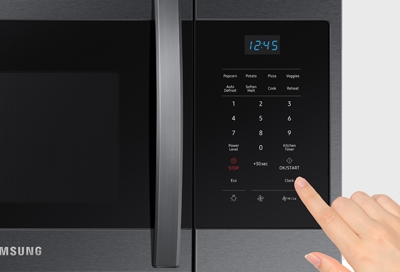
Using The Clock Button
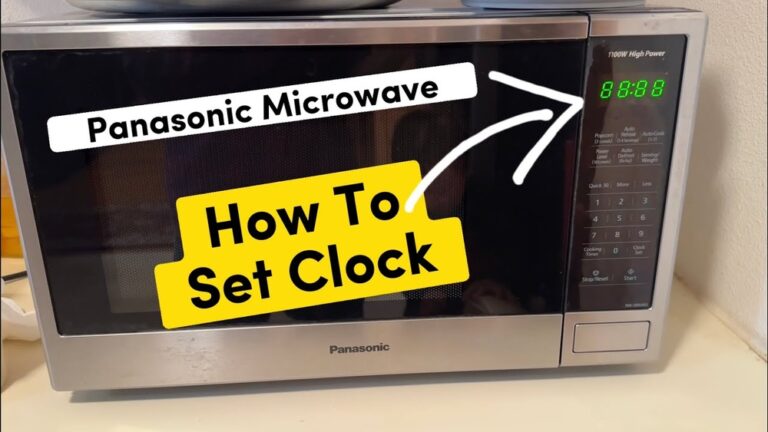
First, press the “Clock” button on the microwave’s control panel. The display will start to blink, showing it is ready for time input. Enter the current hour using the number pad. Make sure to enter the hour only at this stage.
Adjusting Am And Pm
After entering the hour, press the “Clock” button again to switch between AM and PM. The microwave will show either “AM” or “PM” on the display. Choose the correct period to match the current time. This step is important for the clock to be accurate.
Saving The Time
Once the correct time and period are set, press the “Start” or “OK” button. This saves the time on the microwave’s display. The blinking will stop, and the clock will show the set time continuously. Your microwave clock is now ready to use.
Credit: es-us-284fcd07851162dad.getsmartling.com
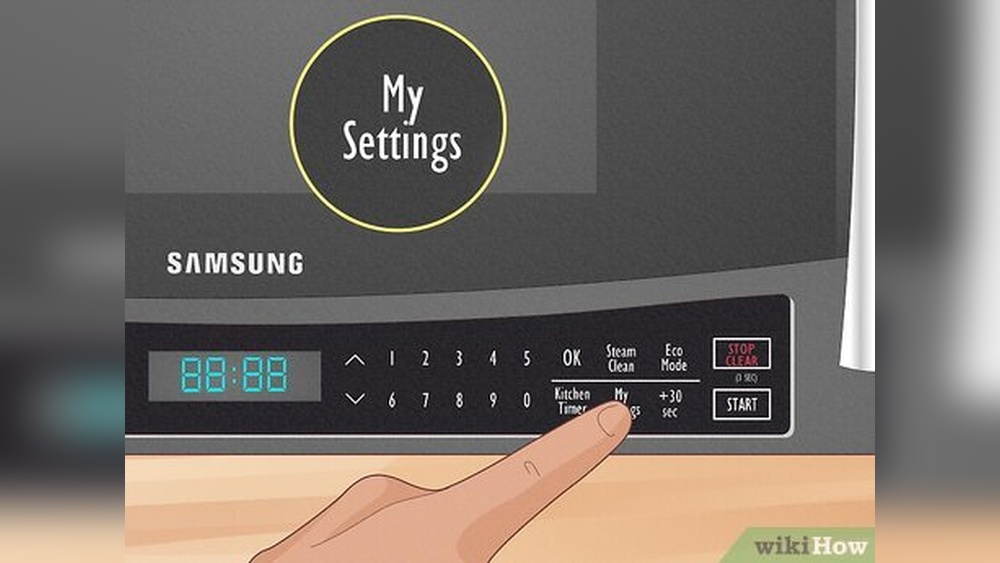
Using My Settings Button
Setting the clock on your Samsung microwave is simple with the My Settings button. This feature lets you quickly adjust the time without hassle. Follow a few easy steps to make sure your microwave shows the right time. This guide explains how to use the My Settings button to set the clock accurately.
Accessing My Settings
First, find the My Settings button on your microwave’s control panel. It is usually labeled clearly. Press this button once to enter the settings menu. The display will change, showing options you can adjust, including the clock.
Entering The Time
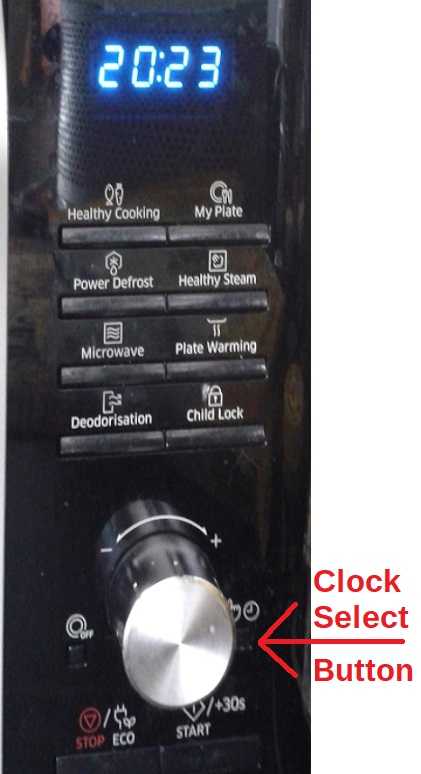
Use the number pad to enter the current time. Make sure to input the time in a four-digit format. For example, type 0830 for 8:30. Pay attention to AM or PM if your microwave uses a 12-hour clock. Some models let you toggle AM or PM by pressing the Clock or Power Level button.
Confirming The Clock
After entering the correct time, press the OK or Start button to save it. The display will return to normal and show the updated time. Your microwave clock is now set and ready to use. Check the time to ensure it is correct before closing the settings menu.
Touch Screen Models
Samsung microwaves with touch screen models offer a modern way to set the clock. The process is simple and quick, using the digital display and touch controls. These models provide clear options on the screen, making it easy to find the clock settings.
Navigating Menu Or Settings
Start by tapping the “Menu” or “Settings” icon on the touch screen. The display will show various options for the microwave’s functions. Look for the clock or time settings among the choices. Sometimes it may be labeled as “Clock” or “Set Time.”
Selecting Set Time
Once you find the clock option, tap on it to open the time-setting screen. Use the keypad or plus and minus buttons to enter the correct time. Make sure to select AM or PM if your microwave uses a 12-hour format.
Confirming With Start Or Ok
After entering the time, confirm your choice by pressing the “Start” or “OK” button on the screen. The microwave will save the new time and return to the main menu. Check the display to ensure the clock shows the correct time.
Credit: www.satsig.net
Troubleshooting Clock Issues
The SmartThings app offers a modern way to set the clock on your Samsung microwave. It connects your microwave to your smartphone. This connection makes syncing the time simple and fast. You can adjust the clock from anywhere in your home. The app also keeps your microwave’s time accurate without manual changes.
Syncing Time Via App
Open the SmartThings app on your smartphone. Select your Samsung microwave from the list of devices. Look for the clock or time settings. Tap on “Sync Time” or “Set Clock.” The app will update the microwave’s time automatically. This feature ensures your microwave always shows the correct time.
If your phone’s time changes, the microwave updates too. No need to reset it after power outages or daylight saving time. The syncing process is quick and saves effort.
Connecting Microwave To Wi-fi
Start by turning on your microwave. Access the settings menu on the microwave’s display panel. Choose “Wi-Fi” or “Network” setup. Follow the prompts to connect to your home Wi-Fi network. Enter your Wi-Fi password carefully.
Once connected, open the SmartThings app. Add the microwave if it is not already listed. Confirm the microwave shows as “Online” in the app. A stable Wi-Fi connection allows the app to control the microwave’s clock and other features.

Credit: www.wikihow.com
Frequently Asked Questions
How Do I Change The Clock Time On My Samsung Microwave?
Press the “My Settings” or “Clock” button on your Samsung microwave. Enter the correct time using the number pad. Press “Start” or “OK” to save. Use the “Power Level” button to toggle AM/PM if needed. Unresponsive? Reset by unplugging briefly.
How Do I Set The Time On My Samsung Oven Without The Clock Button?
Press the “My Settings” or “Power Level” button on your Samsung oven. Enter the correct time using the number pad. Press “Start” or “OK” to confirm and save the time. This method works without a dedicated clock button.
How To Set The Clock On A Microwave?
Press the “Clock” or “My Settings” button. Enter the current time using the number pad. Select AM or PM if needed. Press “Start” or “OK” to save. If unresponsive, reset by unplugging and cleaning the panel.
Conclusion
Setting the clock on your Samsung microwave is simple and quick. Just follow the steps carefully to avoid errors. The process helps keep your microwave ready for timed cooking. Remember to use the right buttons as shown in your model’s guide.
If the clock does not respond, try resetting the microwave by unplugging it briefly. Keeping the correct time ensures your cooking is accurate and hassle-free. Now, you can set the clock anytime without stress or confusion. Enjoy using your microwave with confidence every day.